Before you start
- A Google Business Profile for your business, and the Google login that manages it. The add-on sends customers to your Google review box, so it needs to know which one is yours.
- SMS credits in ServiceM8. Requests go as texts from your own ServiceM8 account, so they use your credits like any other text.
- Mobile numbers on your jobs or client cards. That’s who gets asked. Without a mobile the request goes by email, and without either it can’t go at all.
1. Install it
Press Install now on the Reviews page. It opens ServiceM8, adds Reviews to your account and asks you to approve the access it needs. What each permission is for.
When it’s done you’ll see “ServiceM8 is connected to ServiceHQ Reviews”. Close that window. Installing also adds a No Review badge to your ServiceM8, which keeps a customer out when you need to.
2. Start the free trial
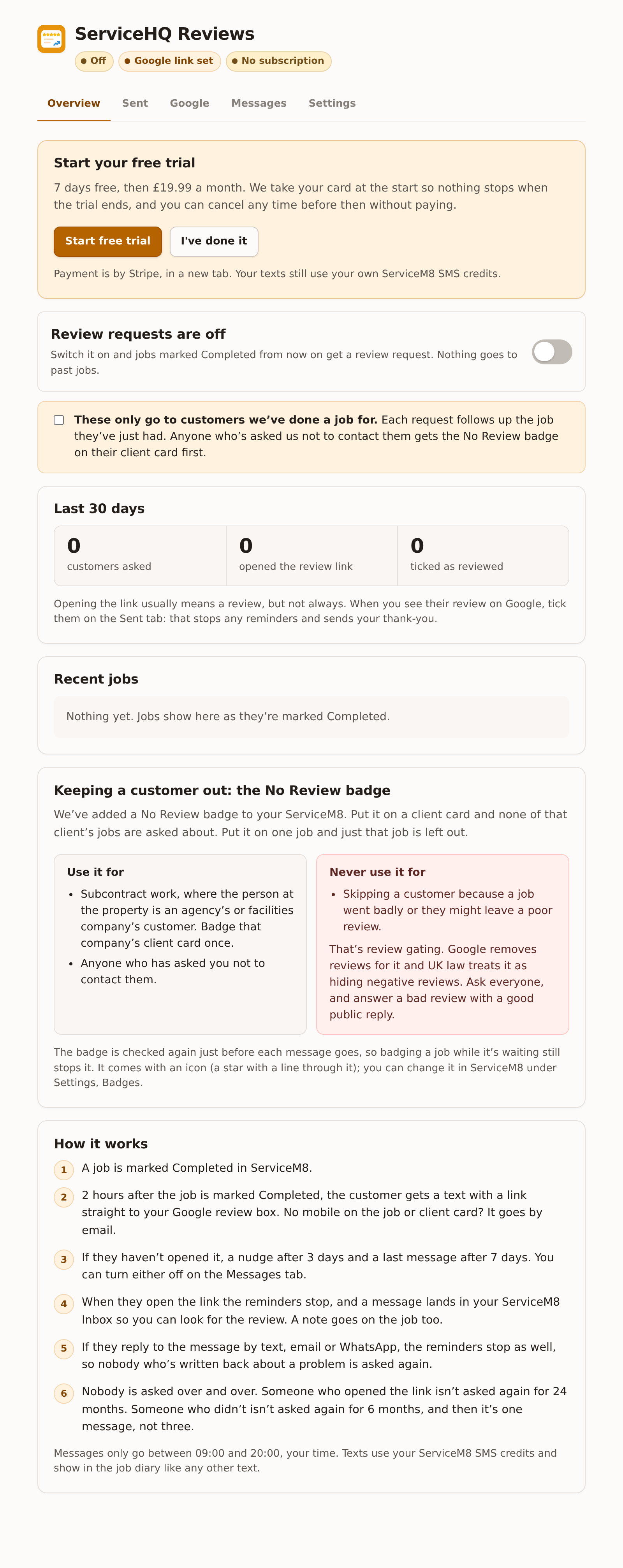
Open Reviews from the ServiceM8 menu. On the Overview tab press Start free trial. Stripe opens in a new tab and takes your card. Nothing is charged for seven days, and you can cancel before then without paying.
When Stripe says “You’re all set”, go back to Reviews and press I’ve done it. The header then shows “Free trial to” and the date.
3. Set your Google review link
This is where every message sends the customer. The quickest way is to connect your Google Business Profile on the Google tab, which fills the link in for you and brings your reviews and drafted replies with it. If you’d rather not, paste the link on the Settings tab. Both ways, step by step.
4. Switch it on
Back on the Overview tab, tick the box that says These only go to customers we’ve done a job for, then turn the switch on. It reads “Review requests are on”, and the header says Sending.
Only jobs marked Completed from now on are asked about. Nothing goes to customers from past jobs. To ask one of them, use the button on their job.
Check it worked
Mark a job Completed. Within a few minutes it shows under Recent jobs on the Overview tab with a line like “Ask by text, 21 Oct, 17:05”, which is when it will go: two hours after the job was completed, and never before 09:00 or after 20:00. Once it has gone, the text shows in the job diary like any other.
If the job doesn’t appear, or the switch shows a warning underneath it, see when something isn’t working.
Worth doing next
- Read the four messages on the Messages tab, and change the wording if it doesn’t sound like you. The messages.
- Put the No Review badge on the client card of any agency or facilities company you do subcontract work for.
- Add your name or the office’s under Who the thank-you is from.