The link in every message goes straight to the box on Google where the customer writes their review. There’s no page of ours in between. It lives on the Settings tab under Your Google review link.
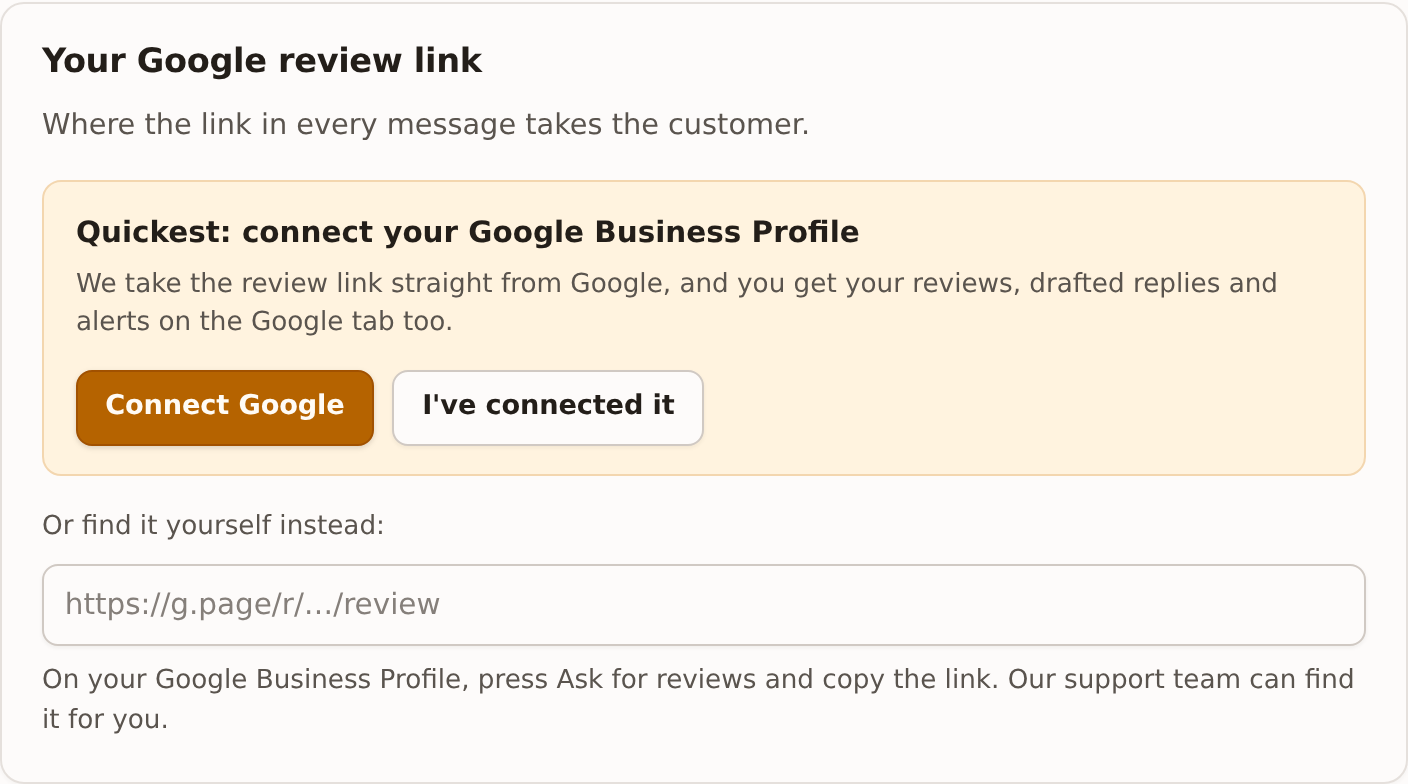
The quick way: connect Google
Press Connect Google. Google opens in a new tab. Sign in with the Google account that manages your Business Profile and allow access. When it says “Google is connected”, close the tab, go back to Reviews and press I’ve connected it.
Your review link is filled in from Google, with your business name next to it so you can see it’s the right one. You also get the Google tab: your reviews as they come in, customers ticked off for you, and drafted replies.
Or paste it yourself
- On Google, open your Business Profile (search for your business name while signed in, or go to business.google.com).
- Press Ask for reviews and copy the link it gives you. It looks like
https://g.page/r/…/review. - In Reviews, paste it into the box on the Settings tab and press Save at the bottom.
If a list of businesses appears under the box, you can pick yours from it instead of pasting. Our support team can also find the link for you.
Checking it
Once it’s set you’ll see a green tick with your business name and the link. Press Change to replace it.
Changing the link later is safe. Messages already sent use whatever the link is now, so a customer who taps an old message still lands in the right place.