Type in the box at the bottom and press Enter to send. Shift and Enter for a new line. Replies go from your business number and look like any other WhatsApp message.
Under the box is one row of buttons, each with its name under the icon: Attach, Templates, AI draft (on the Chat Assistant tier), Saved, Details, and Job files when the conversation is on a job. Hover over one on a computer for what it does.
Attach
A photo, a PDF, or any other file from your phone or computer, with an optional caption. Only while the 24-hour window is open. Once it closes the button says so.
Saved replies
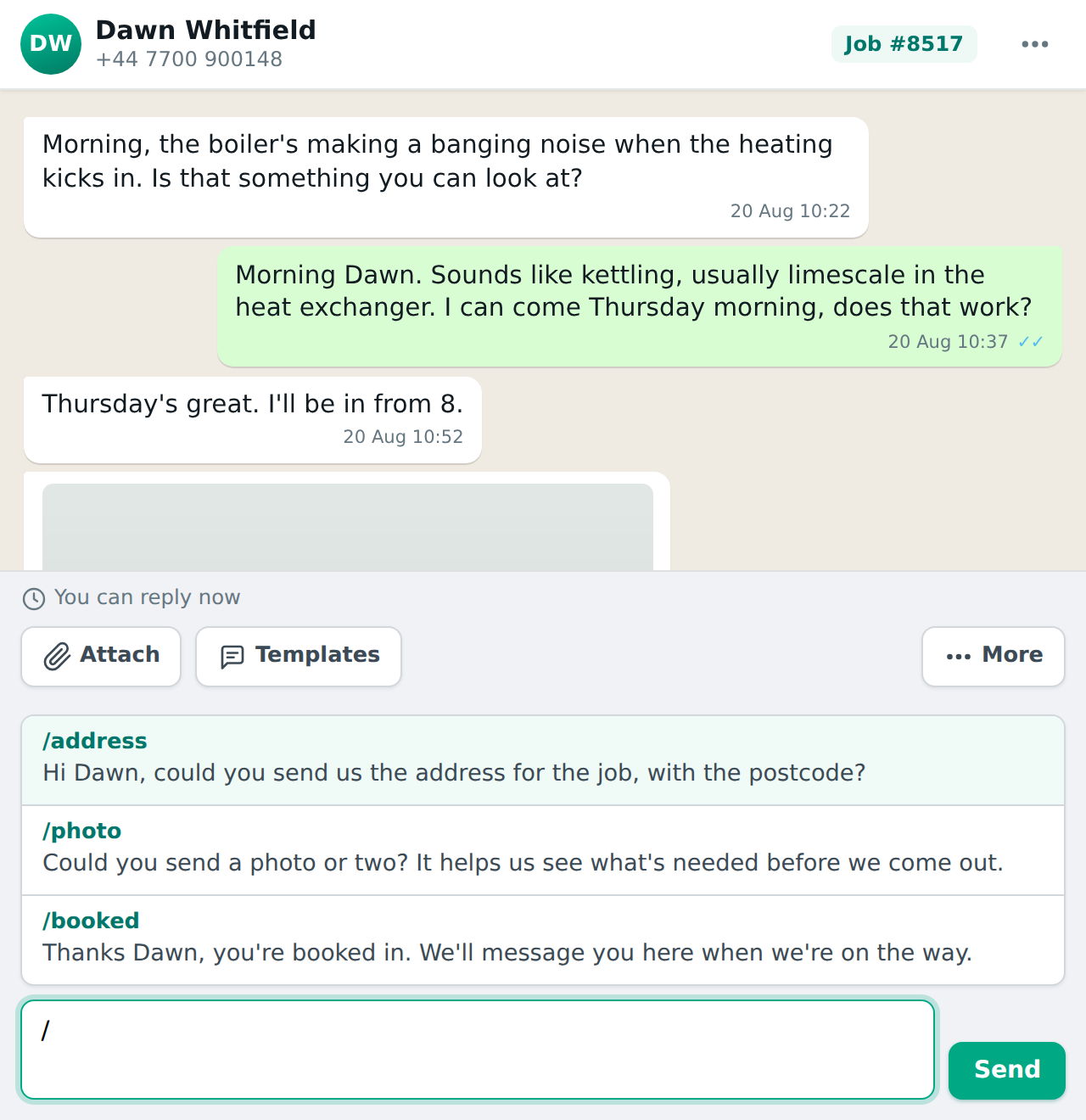
Messages you send often, written once. Type / at the start of the box and your saved replies appear above it; keep typing to narrow them down (/add finds /address). Tap one, or use the arrow keys and press Enter, and it goes into the box for you to check before you send it. The Saved button opens the same list.
You write your own in Settings: the Messages tab, then Saved replies, so they fit your work. Put {name} where the customer’s first name should go and {business} for your business name. They’re filled in when you pick the reply.
AI draft
Writes a suggested reply from your business details, your knowledge notes, the job and the customer’s history. It goes into the box for you to read, change and send, and nothing is sent until you press send. Only on the Chat Assistant tier, and it costs one credit. AI drafts.
Details
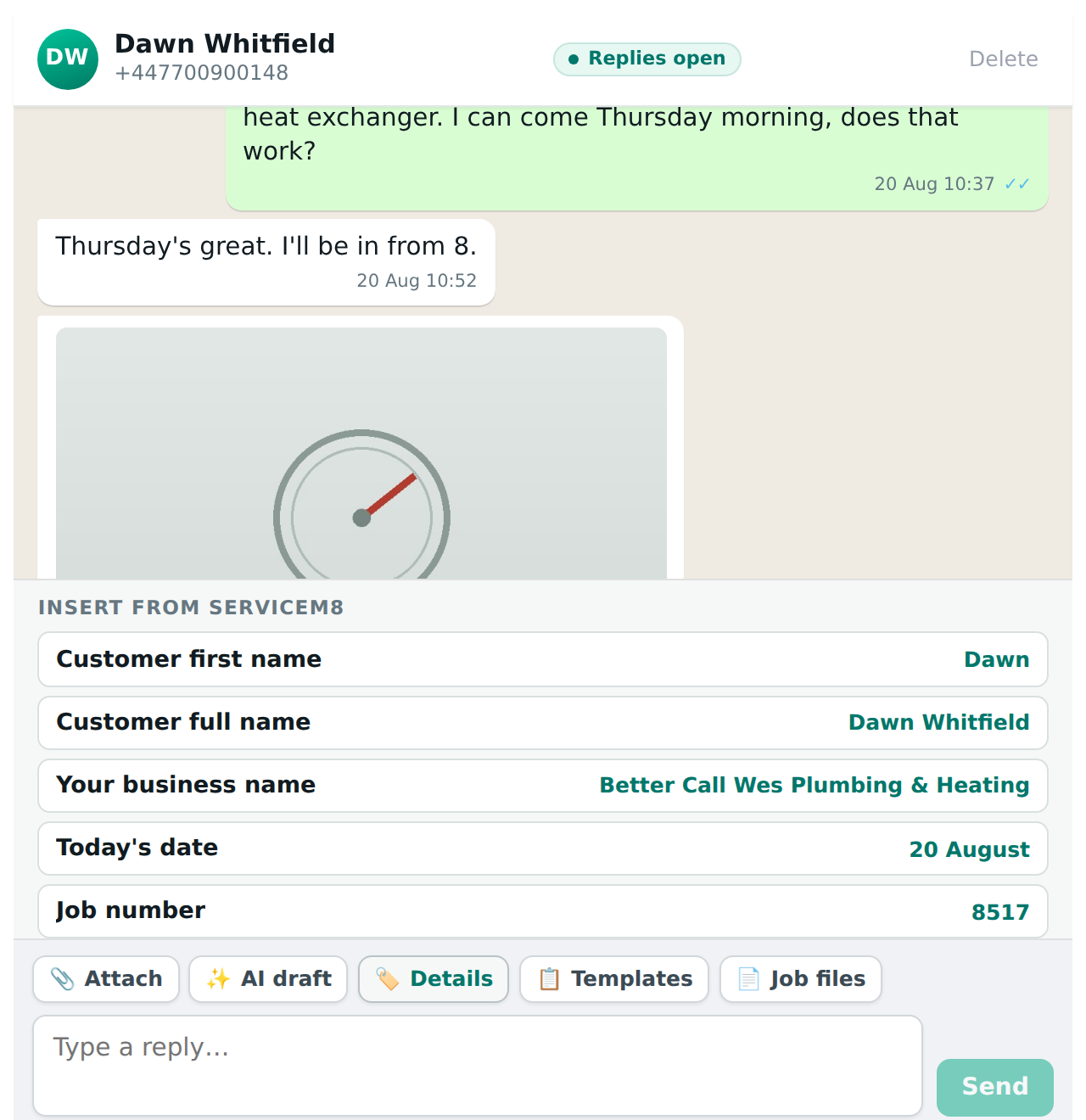
Inserts a value from ServiceM8 into your message so you do not type it: the customer’s first name, full name or last name, your business name, today’s date, and, if the conversation is on a job, the job number, category, address, status and total.
Templates
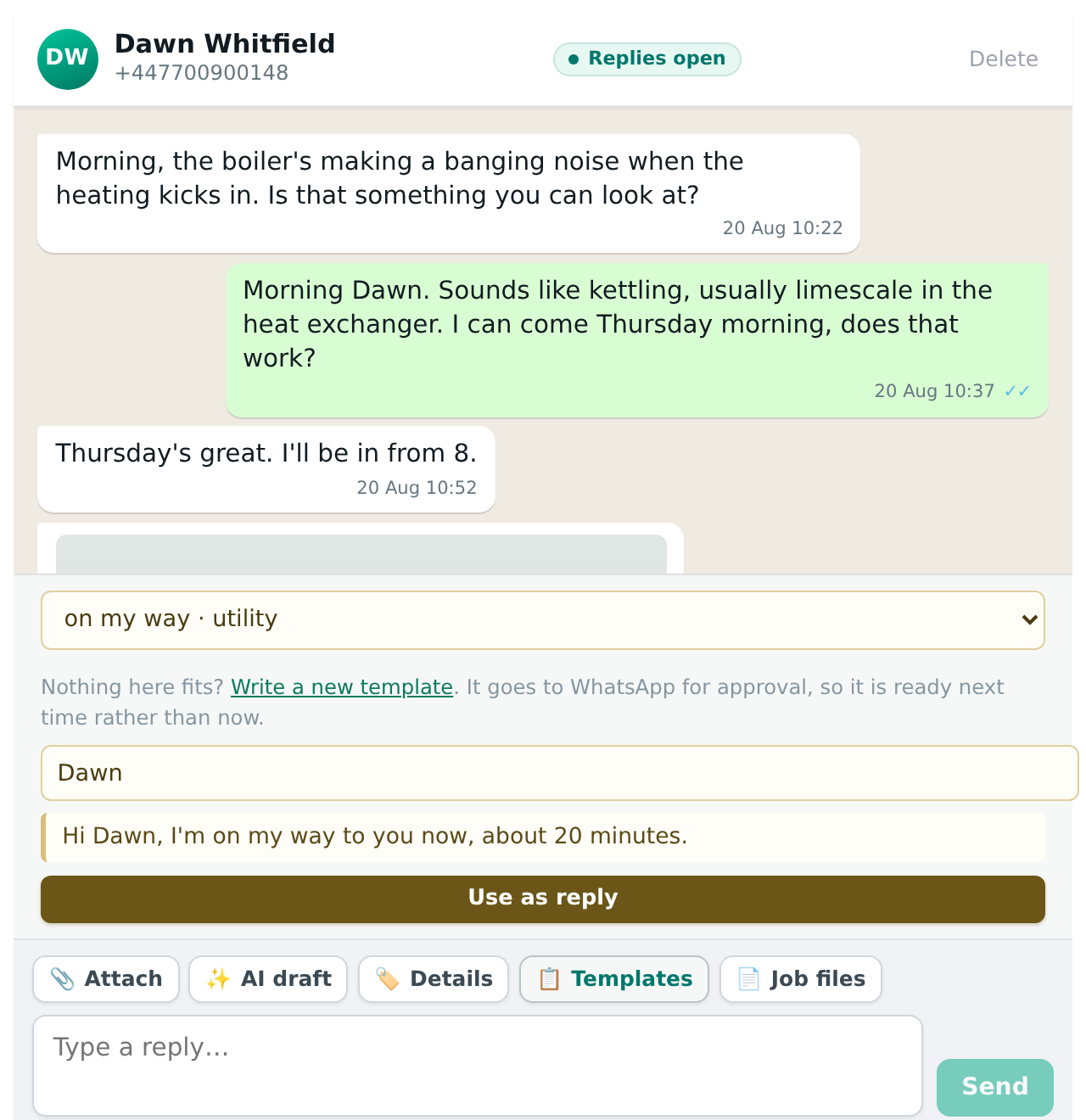
Your saved templates. Each one offers two things:
- Use as reply puts the wording in your message box, filled in from the job, to send as a normal reply. No template charge. Only inside the window.
- Send template sends it as an approved template, which is the only way to reach someone after the window has closed. The values for each blank are filled from the job and you can edit them first.
Write a new template opens the Messages tab. A new template goes to WhatsApp for approval, so it is ready next time rather than now.
Job files
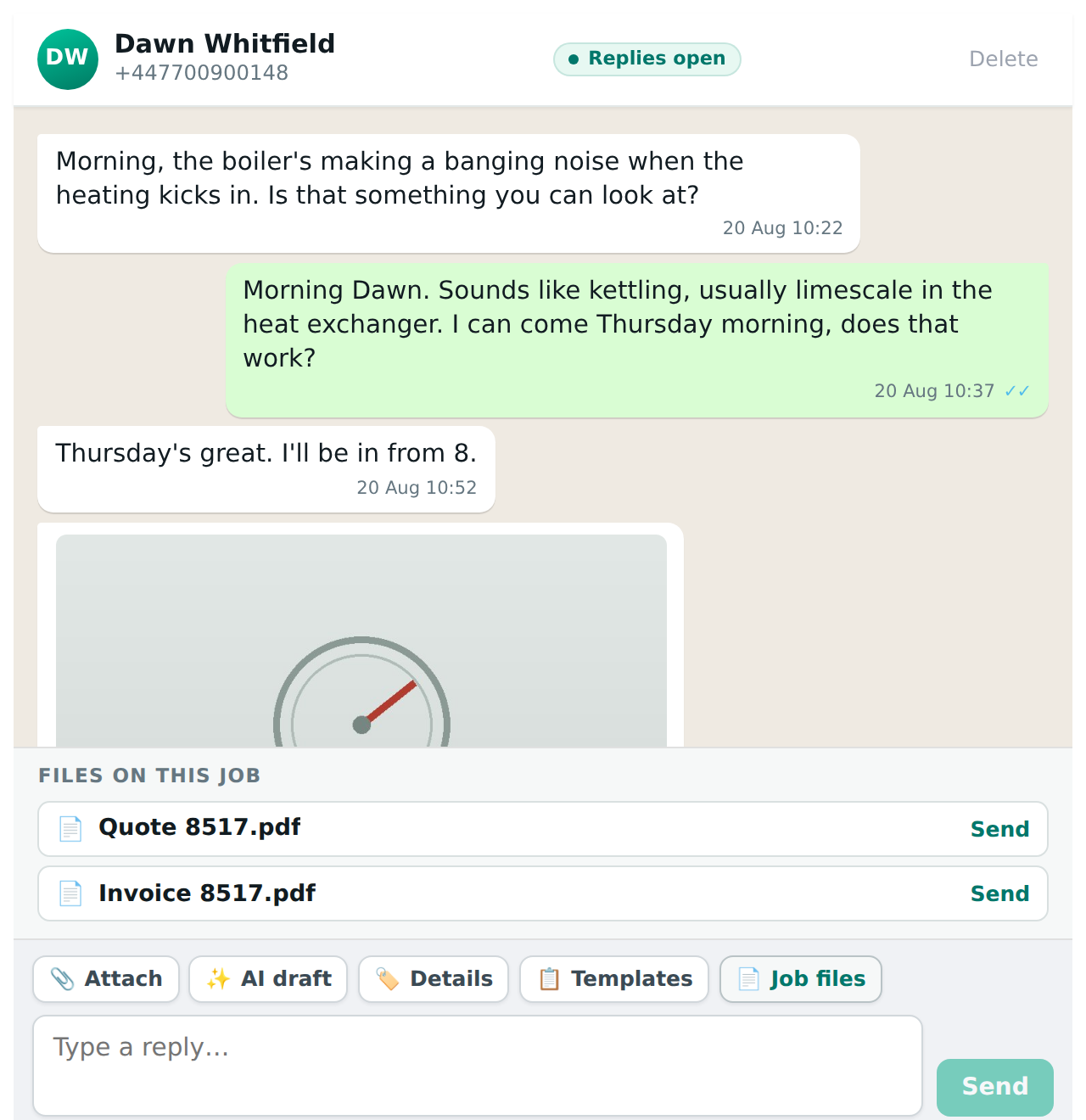
A quote, invoice or other file that is already on the job in ServiceM8, sent as an attachment. It’s the last button in the row, and it’s there whenever the conversation is on a job, however you opened it: from the job, the messages list or a client card. It says “No files on this job yet” until ServiceM8 has created one. Only inside the window.
The ticks
Beside each message you sent: one tick when WhatsApp has it, two when it reached the customer’s phone, and two blue when they have read it. Hover or long-press for the words. A red mark means WhatsApp refused it, and the reason is shown.
“Assistant” beside a reply
A reply the Chat Assistant sent carries a small Assistant tag beside the time, so you can see which words were its and which were a person’s.
The bin
Top right. Deletes the messages and photos ServiceHQ holds for this customer. Anything already saved onto a job stays in ServiceM8, because those are your records. Your data.