Templates are pre-approved messages you can send outside the 24-hour window. WhatsApp reviews the wording before you can use it, which usually takes minutes but can take up to a day.
You do not have to write them twice
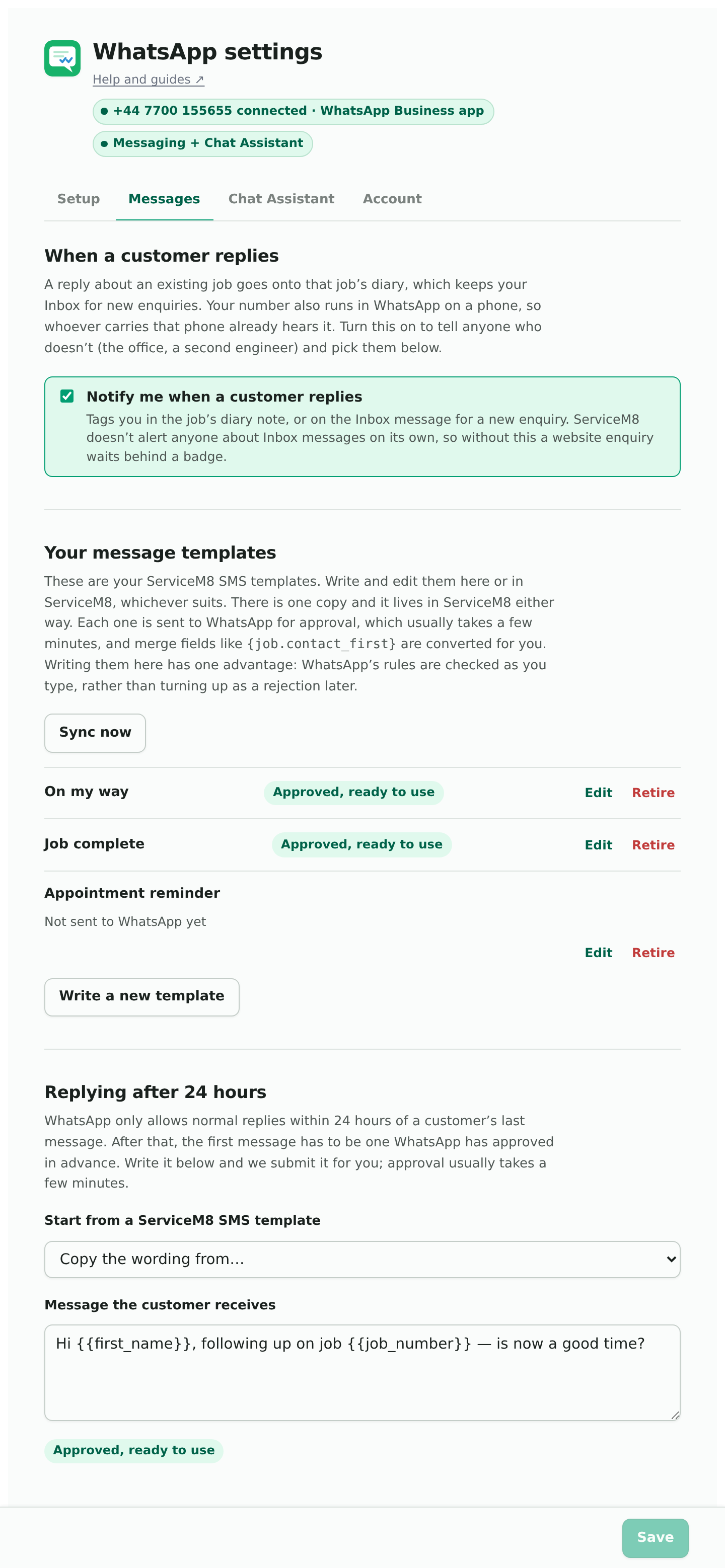
The add-on mirrors the SMS templates you already have in ServiceM8. Press Sync now on the Messages tab (it opens on Templates) and it converts them to WhatsApp’s format and submits them for approval. There is one copy and it lives in ServiceM8 either way.
Saving or removing a template here sends the change to WhatsApp straight away. A change made in ServiceM8 itself reaches WhatsApp when you press Sync now; until then WhatsApp still has the old version. Removing one asks you to confirm first, because it’s deleted from ServiceM8 as well.
Your merge fields come across. When you send one from a job, the values are filled in from that job, the customer’s name, the job number, your business name, exactly as they would be in an SMS. Which fields convert.
You can also write and edit them from inside the add-on, in the Messages tab, which checks WhatsApp’s rules as you type rather than after you submit. The editor has an Insert a detail from the job menu so you pick the field rather than remembering how it is spelt.
Sending an invoice, quote or photo after 24 hours
After 24 hours WhatsApp only lets you send an approved template, and a plain template can’t carry a file. A template with an attachment can, so it’s how you send the invoice to a customer who hasn’t messaged lately, in one message.
The ready-made ones. On the Messages tab, under Invoice and quote, with the PDF attached, press Add both templates. WhatsApp has to approve them first, which can take anything from a few minutes to a day. Then in a conversation where the 24 hours have run out, open Job files and press Send with template next to the invoice or quote PDF.
Your own. When you write or edit a template, choose what it goes with under On WhatsApp, send it with: just the message, a PDF or document from the job, or a photo from the job, and save. When you send it, you choose which file on the job goes with it. Changing the attachment on an approved template sends it back to WhatsApp for approval. Text messages from ServiceM8 aren’t affected.
WhatsApp only takes JPEG and PNG photos on a template. Some photos from ServiceM8’s app are saved as AVIF, which it won’t take there. Those can still go in a normal reply while the 24 hours are open.
Templates made somewhere else
Templates made in WhatsApp Manager, or by another app sending through your number, are listed under Other templates on your WhatsApp account at the bottom of the Messages tab.
Edit changes the message and its footer. Buttons and anything at the top
of the template stay as they are. So do the numbered gaps like {{1}}: they
can move around the message, but not be added or taken out, because whatever
sends the template fills them in by number. WhatsApp only takes a change once
it has approved or rejected a template, so one still being reviewed can’t be
edited yet. An approved one can be changed once a day.
Remove takes it off your WhatsApp account. Anything that sends it by name stops working, and WhatsApp won’t let an approved template’s name be used again for 30 days.
Booking confirmations from ServiceHQ Booking
If you also use ServiceHQ Booking and turn on WhatsApp confirmations there, a template called booking_confirmation is added to your WhatsApp account and sent to WhatsApp for approval, usually a few minutes. It’s what customers who ticked “Send my confirmation on WhatsApp” receive: the service, the day, the job number and a link to move or cancel. It doesn’t appear in your template list or the conversation’s template picker, because the booking page fills it in. Each one is a paid WhatsApp message on your account, like any template sent outside the 24 hours. If a customer isn’t on WhatsApp, they get the email or text instead.
The “replying after 24 hours” message
Further down the Messages tab is one template that matters more than the others: the message you send to reopen a conversation once the window has closed. Write it in the box, or start from one of your SMS templates, and we submit it for you. The chip beside it shows Pending, Approved or Rejected.
If you already have a template approved in WhatsApp Manager that you would rather use, open Use a template you have already had approved and give its name and language code.
If a template is rejected
The Messages tab says why, in plain English. The common reasons:
- It starts or ends with a merge field. WhatsApp does not allow it, even with a full stop after the field. Put a few words before or after: “Hi {job.contact_first}” rather than the field on its own. Your business name is the exception: the add-on writes it in as words, so a sign-off like “Thanks, {vendor.name}.” is fine.
- It reads as marketing rather than information about a job. WhatsApp is strict about this and the line is not always where you would put it.
- INVALID_FORMAT in an email from Meta. This was a fault of ours in the first weeks, since fixed. If you see it now, email us rather than rewriting the template.
Fix the wording and resubmit. A rejection costs nothing but time.
Utility and marketing
WhatsApp sorts every template into one of two categories, and it matters because they cost different amounts. The add-on reads your wording and picks the category for you.
- Utility: about a job the customer already has with you. Cheaper.
- Marketing: promotional. Costs more, and customers can switch it off entirely.
If WhatsApp decides one of your templates is really marketing when you meant it as utility, the add-on tells you. That is worth knowing rather than discovering on a bill, because it changes both what it costs and whether it arrives at all.
A note on editing
Editing an approved template sends it back for approval, and it cannot be used while it is being reviewed. If a template is one you rely on, think of an edit as taking it out of service for a bit, usually minutes, occasionally a day.