WhatsApp Settings, the Chat Assistant tab. It has four sub-tabs: Answering (the on/off switch, when it answers and how it talks), Knowledge, When you work and Services. On Answering, each group shows its current settings in a line; tap one to open it. This page covers Answering, then Services, then When you work. Ten minutes to set up for a typical business, and the first few bookings will tell you what to adjust.
The switch
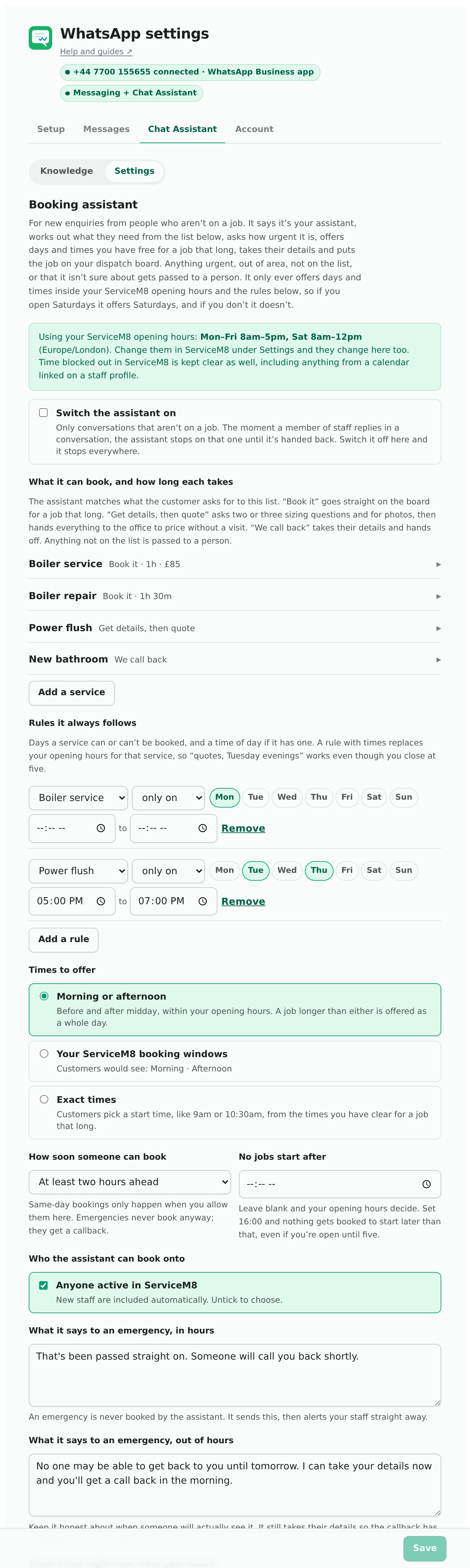
Switch the assistant on, at the top. On means it answers new enquiries that are not on a job, all day or only when you’re closed (see below). Off here is off everywhere. You can also stop it on one conversation at a time without touching this. Taking over.
Leave it off until the services list below is filled in. Switched on with an empty list, it hands every enquiry to a person, which is safe but pointless.
Hours it answers
All day answers every new enquiry, whatever the time.
Only when you’re closed leaves new enquiries during your ServiceM8 opening hours to you, in the Inbox as usual, and answers the rest, evenings and weekends included. It needs opening hours set in ServiceM8 and uses them as they are there. Enquiries it leaves for you cost nothing from your monthly AI allowance.
A conversation it has already started carries on after you open, so nobody is left halfway through booking at nine o’clock. Reply in a conversation yourself and it stops on that one, whichever you pick.
After someone on your team replies
When anyone on staff replies, the assistant steps back on that conversation. Choose how long for. It stays out until you hand it back is the default. Or it takes back over after 2, 4, 24 or 48 hours without a reply from you, and answers the customer’s next message. That suits a business that wants it on all the time, passing on anything it can’t do. The same time applies to a conversation it passed on to you that nobody has answered yet.
On a job
Only jobs it booked. On a job the assistant booked, it keeps looking after the customer until the day of the visit. It resends the confirmation email if they didn’t get it, tells them when and where the visit is, moves or cancels it under your rules, and answers questions from your notes. Anything else, it tells them it’s passed on, and you’re told as usual.
Every job. It also answers on jobs you booked yourself: questions from your notes, and “I’ve passed that on” for anything else, so nobody waits in silence. It can’t change those jobs or send anything about them.
If they ask for different work (“can you fit a gas hob too?”), it books that as a new job, the same way it books any new enquiry, rather than passing it on. Their existing job stays as it is.
Either way it only knows your notes and that customer’s own booking. It can’t see other customers or other jobs, so there’s nothing for anyone to talk it into giving away. What it can do is a fixed list, decided by the add-on, not by what someone types.
Who it talks as
Your assistant introduces itself as your business’s assistant and talks for the business. It never tells a customer “I’ll come and take a look”, because it won’t be the one coming.
A member of staff replies in their name, in the first person (“Hi, it’s Wes from Better Call Wes”). Choose them from your ServiceM8 staff, and if customers know them by a different name, put it in Refer to them as. Left blank, it uses their first name from ServiceM8. Customers aren’t told it’s automated.
Who it passes things on to
When it hands a conversation over, it tells the customer who to expect. The office says “I’ll pass this on to the office and someone will get back to you here”. A person: choose them from your ServiceM8 staff, and optionally fill in Refer to them as with the name customers know them by. It says that name, or their first name from ServiceM8 if it’s blank: “I’ll pass this on to Wes, who’ll get back to you here”. The hand-over note tags the person you chose, as well as whoever else is notified. It can’t be the person it talks as, so they’re left out of the list; if you switch who it talks as to the person it was passing things on to, that goes back to the office for you to choose someone else.
When it tells you
ServiceM8 doesn’t send a notification for a new Inbox message, but it does when someone is tagged in a note. So when the assistant has news, it writes a note and tags your staff. Not for every message: a booking is eight or ten of them, and a buzz for each would soon be switched off.
When something happens is the default. You’re tagged:
- when it starts talking to someone. That goes on the new enquiry’s own note, so the first message still buzzes once, not twice.
- when it books a job. The note goes on the job and tags whoever it booked.
- when it needs you: a hand-over, an emergency, a question it couldn’t answer, or an answer where it told the customer someone would come back to them.
- when a customer says they don’t need it any more.
- when a customer stops replying halfway. It waits two hours, then tells you whatever the time, so you can decide whether to jump in. If you don’t want your phone to ring at night, that’s your phone’s notification settings.
Only when it needs you tags you for hand-overs, emergencies, questions it couldn’t answer and bookings that didn’t go through cleanly. The rest is still written as a note in the Inbox or on the job, just without the tag.
Every note has the reply link, so one tap opens the conversation. Who gets tagged follows Who gets told on the Messages tab, under Notifications. With nobody ticked it’s everyone for an enquiry, and whoever is booked on the job for a booking.
What it says to an emergency
Two sentences, yours to edit. In hours: “That’s been passed straight on. Someone will call you back shortly.” Out of hours: “No one may be able to get back to you until tomorrow. I can take your details now and you’ll get a call back in the morning.” Keep the second one honest about when a person will actually see it. It still takes their details so the morning callback has everything in front of them.
Services
The Services sub-tab, with how many you have beside its name: the services the assistant can book, and how each is booked.
What it can book, and how long each takes
The services list. The assistant matches what a customer asks for to this list, and anything not on it goes to a person. Each service has a name, how long it takes, and one of three ways it is handled.
- Book it. Goes straight on the board for a job that long. “Boiler service, 1 hour”.
- Get details, then quote. For jobs you cannot size without knowing more. The assistant asks two or three sizing questions written for your trade, asks for photos, takes name and address, and hands everything to you to price from the chat. No visit is booked. “Power flush”: nobody can say how long that takes without counting radiators.
- We call back. Takes one question and their details, and hands off. “New bathroom”.
The length is the field that has to be honest. The assistant only offers a window if an engineer has that much clear time inside it, plus 30 minutes of travel either side. Too short and jobs overrun; too long and mornings look full when they are not.
Price is optional. If you type one, the assistant says it: “That’s £85. Which day suits?” If you leave it blank, it does not talk about money.
Adding a service
Add a service gives two ways to start. With no services yet, they’re shown straight away.
Start from a job template. Choose one of your ServiceM8 job templates from the list, one per service. The job the assistant books is made through that template, so it arrives with whatever the template holds: badges, checklist, line items and their prices. The service is named after the template and set to an hour; change both to suit. The add-on can’t read a price off a template, so if you want the assistant to quote one, type it in the price box. That box only affects what the chat says; the template prices the job.
If you have no job templates in ServiceM8 the list says so. On some ServiceM8 accounts we aren’t allowed to read job templates at all, and the screen says that instead.
Start from scratch. Give it a name, choose a job category to file it under, and search your materials list for the line items it should carry, with quantities. The job is made with those items on it at list price.
Services your booking page offers too
If you also use ServiceHQ Booking, a service can be offered both here and on your online booking page. It’s one service, so a change in either place changes both, and the service says so when you open it: “Your online booking page offers this service too”. Your booking rules and times to offer are shared the same way.
To change it for the Chat Assistant only, open it and press Make a separate copy. The assistant gets its own copy to change freely, and the booking page keeps the original exactly as it is. Bookings the assistant already made for that service move to its copy, so customers can still move or cancel them.
Badges
Open the service and choose any of your ServiceM8 badges under Badges put on the job: “Call Before Arrival”, “Warranty”, whatever you use. Every job the assistant books for that service gets them. On a service made from a job template they’re added to the template’s own badges, not instead of them.
For quote jobs
Open the service and you will see the questions it will ask, drafted for that service and your trade. Edit them, add or remove, and once you have typed your own they are asked as written. “Photo of…” says what you want a picture of: “the boiler and its display”.
Who can do it
Open the service and you’ll see the people from Who can be booked, all ticked. Untick anyone who can’t do this one; all ticked means anyone on that list. Useful when only one person is Gas Safe registered.
When you work
The When you work sub-tab, the same screen your online booking page has under the same name. How times are offered, how much notice you need, how far ahead to book, breaks, moving and cancelling, who can be booked, and your rules, with a preview of what a customer would be offered at the bottom.
If you use ServiceHQ Booking as well, this is the same schedule your online booking page books from, and the group says so. Change it here or there and both follow.
What it reads from ServiceM8
At the top of When you work, a line such as “Using your ServiceM8 opening hours: Mon to Fri 8am to 5pm, Sat 8am to 12pm”. Those hours, your timezone, your staff, and everything already on your dispatch board come from ServiceM8 every time, along with any time blocked out in ServiceM8, including events from a calendar linked on a staff profile. A block on one engineer’s calendar stops only that engineer.
If the hours are wrong, fix them in ServiceM8 and reload. If it says “ServiceM8 has no opening hours set for this account”, set them in ServiceM8 under Settings; the assistant cannot offer any times until you do.
You do not maintain a second copy of anything ServiceM8 already knows.
How times are offered
How a customer chooses when.
- Morning or afternoon. Before and after midday, inside your hours. The default, and right for most businesses. A job longer than either half is offered as a whole day.
- Your ServiceM8 booking windows. If you have set up allocation windows in ServiceM8 (Settings, then Allocation Windows), the assistant offers those instead, and the screen shows the exact labels a customer would see. This is an opt-in, not automatic, because ServiceM8 seeds default windows in some accounts and their existence is not consent.
- Exact start times. Customers pick a start time, 9am or 10:30am, from the times you have clear for a job that long. A start time every 30 minutes, an hour, an hour and a half, or two hours. More than three options, so these go out as a list rather than buttons.
How soon someone can book
At least an hour, two hours (the default), or four hours ahead; the next working day at the earliest; or two days ahead. Same-day bookings only happen if you allow them here. Emergencies never book anyway; they get a callback.
How far ahead it can book
Every week from one to twelve, then four, five or six months. Two weeks is the default. It only offers times inside this window, so a customer asking in March for a boiler service in May needs it set to at least eight or nine weeks. Further ahead suits annual services and planned work; nearer stops the diary filling up weeks out.
If nothing is free inside the window, it passes the customer to you and says how far it looked.
No jobs start after
Optional. Leave blank and your opening hours decide. Set 16:00 and nothing is booked to start later than that, even if you are open until five.
A price-first visit
How long a visit to look at a job before pricing it is booked for: 15 minutes to two hours, 45 minutes unless you change it. Only your online booking page books these visits. The Chat Assistant prices those jobs from the chat instead, so this setting changes nothing it does.
Breaks and cut-offs
All off until you turn them on.
- Take a lunch break. Choose when it starts and how long it lasts, from half an hour to an hour and a half. Nothing is booked over it, except a job that takes the whole day.
- Stop taking bookings for today after a set time. After that time it offers nothing for today, only tomorrow onwards.
- Never book a whole-day job for today. A job that takes the whole day is offered from tomorrow at the earliest, however early the customer asks.
These describe your working day, so the assistant and your online booking page keep to the same ones.
Moving and cancelling
Two tick boxes, both off until you turn them on. They only cover bookings the assistant made.
Customers can move their booking. A customer messages “can we do Friday instead?” and it offers new times the same way it booked them, then moves the visit on your dispatch board. The new times still follow how soon someone can book, so nobody moves into tomorrow morning if you need two days’ notice. Choose the notice it needs (any time, or 12 to 72 hours before the visit) and how many times one booking can be moved: once, twice, three times, or no limit.
Customers can cancel their booking. It asks them to confirm, takes the visit off the board and marks the job Unsuccessful. Choose the notice it needs, the same way.
Every move or cancellation puts a note on the job and a message in your ServiceM8 Inbox, so whoever runs the board sees it. If the customer asks inside your notice, or has already moved it as many times as you allow, it tells them it can’t do it here and passes the request to you.
The rule goes on their booking confirmation, on WhatsApp and in the email: “Need to move or cancel it? Just message here at least 24 hours before.” That way nobody finds out about the notice when it’s already too late.
Who can be booked
Everyone in ServiceM8, with anyone you add later included automatically, or untick to choose. Unticking starts with everyone ticked, so you take off the people who don’t go out rather than ticking each one. Availability is worked out per engineer: a one-person business gets one engineer’s clear time, a three-van firm gets three. The job goes to whoever has the most room in the chosen window. Each service then chooses from these people, on the Services sub-tab.
Rules it always follows
Days a service can or cannot be booked, and a time of day if it has one. A rule with times replaces your opening hours for that service, which is how “quotes on Tuesday evenings” works even though you close at five.
Each rule: which service (or any job), only on or never on, the days, and optionally a from and to time. Three examples, all real:
- Boiler service, only on Monday.
- Any job, never on Friday.
- Quote visits, only Tuesday and Thursday, 5pm to 7pm.
A rule the code applies is a rule you can rely on. The preview at the bottom lets you check that “boiler service, Mondays only” really does produce Mondays before a customer is offered one.
What’s free right now, from your board
The preview at the bottom. Pick a service, or “any job, the board as it stands”, and it shows the first few days a customer asking today would be offered, inside the window you set above, worked out from your real board. If a service shows nothing, check its rules, its length, and what is already booked.
Save
The button at the bottom. Unsaved changes show as a dot on the tab.
If it says booking is off
“Booking is off until you reconnect ServiceM8” means the add-on needs permission to create jobs and write to the board, and this connection was made before it asked. Setup tab, Reconnect ServiceM8, approve, and come back. Until then a “Book it” service takes the customer’s details and hands over instead. One reconnect needed.