A message from a number that is not on any open job is a new enquiry. It goes to the ServiceM8 Inbox, because that is where new work arrives from every other channel too.
What arrives
An Inbox entry with the sender’s name and number filled in, and a note on it: “New WhatsApp enquiry from …” with a link to the conversation and, if you have notifications on, a tag for whoever should be told. ServiceM8 does not alert anyone about Inbox messages on its own, which is why the tag exists.
If their number is already on one of your client cards, the entry is linked to that client. Converting it then puts the job on their card, whether you do it from ServiceM8’s Inbox or from the conversation.
If they send several messages in a row, only the first is tagged. The rest arrive untagged with their link, until an hour has passed or somebody has replied.
For your first five enquiries the note also explains the two buttons below, because nobody arriving at their first WhatsApp enquiry knows that converting it is what makes the WhatsApp button appear on the job. After five, the note is just the link.
If the Chat Assistant is on, it has already replied by the time you read this, and the customer’s later messages do not each become another Inbox entry. They are kept with the conversation and carried onto the job when there is one.
The two decisions
In ServiceM8’s Inbox: Convert to Job or Attach to Existing Job. The same two are offered inside the conversation, because that is the screen you are actually reading the message on: the status line under the customer’s name says “Not on a job”, and its Actions button holds both.
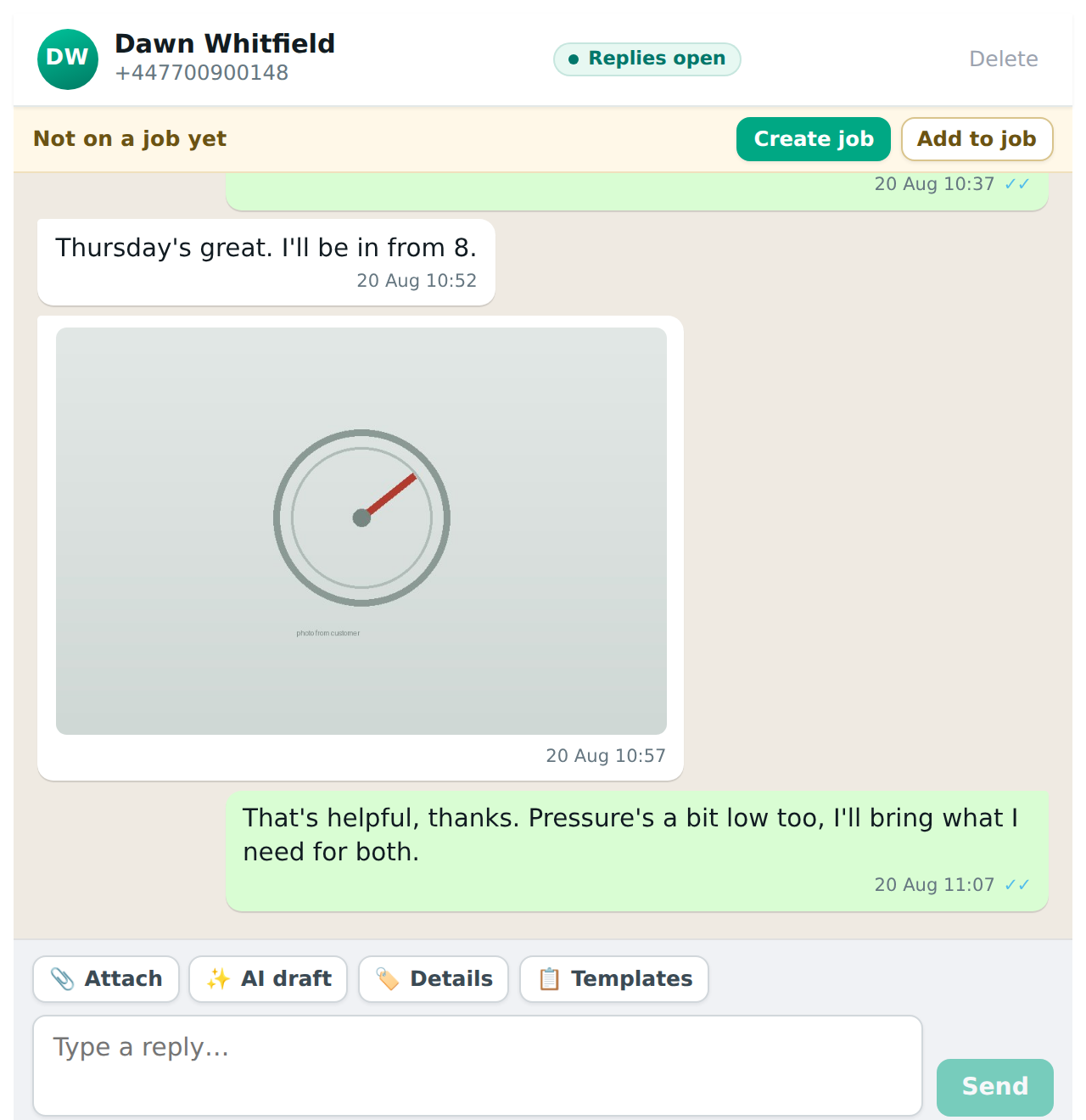
- Create job does the same as Convert to Job in the Inbox. Before it makes the job it looks for the customer in ServiceM8: their number on a client card, an email they gave in the chat on a client card, or their number on past jobs that all belong to one client. If it finds them, the job goes on their existing card rather than a new one, and the screen says so. Then anything they gave in the chat is filled in: the address on the job and their client card, their full name, email and any other phone number on the job contact. Only blanks are filled; nothing already there is changed.
- Add to job asks for a job number and files the conversation against a job you already have. Use it when the customer already has work with you and just messaged from a number you did not have.
Either way, the conversation moves onto that job, the WhatsApp button appears in the job’s action menu, and every Inbox entry from that person is cleared. The whole conversation so far goes on the job as one diary note, with nobody tagged: their messages and your replies, in order. The Inbox entries themselves are archived rather than each landing on the job as a separate email.
Customers with a WhatsApp username
WhatsApp now lets people pick a username, and someone who has one can message you without their number being passed on, unless you’ve messaged each other in the last 30 days. Their enquiry still arrives in the Inbox as normal, under their name or username, and the conversation shows “Number not shared” where the number would be.
We send them WhatsApp’s own button for sharing their number, once (and not again for a week if they don’t). The note on the Inbox entry says so. When they tap it, their number goes on that Inbox entry, the conversation moves onto the number, and everything works as it would for anyone else: their client card is found, and their messages go to their job.
If the Chat Assistant is on, it waits for the number before it answers, because it needs it to look them up and put a mobile on the job. Once they share it, it answers what they asked, unless someone on your team has replied in the meantime.
You can still reply to them before they share it. Your replies reach them either way.
Photos that arrived before the job existed
Kept with the conversation and put onto the job the next time it is opened. Converting happens in ServiceM8, so opening the conversation is our first chance to know the job exists. If a photo you expected is not on the job, open the conversation once and it will be.