This is the one part of the setup with a decision in it. Read it before you press anything, because the two routes are hard to swap between afterwards.
Start the free trial first
The first time you open WhatsApp Settings after installing, it asks you to start the free trial, and the Connect WhatsApp button is not there until you have. That screen is not an error. Pick a plan, press Start free trial and put a card in at Stripe: seven days free, nothing is charged until the trial ends, and we email you three days before it does. Stripe sends you straight back to WhatsApp Settings, now with the Setup tab, and the first row on it is your WhatsApp number.
It opens in a new tab
The Setup tab only appears after you start the trial. If you have not done that yet, work through the section above first.
On the Setup tab, press Connect WhatsApp and the connection screen opens in a new tab. That is not a quirk. Facebook will not show its login window inside the ServiceM8 window, so the connection screen has to run on its own. If you ever see a blank or refused Facebook window inside ServiceM8, that is why, and the fix is the “Open in a new tab” link on the screen.
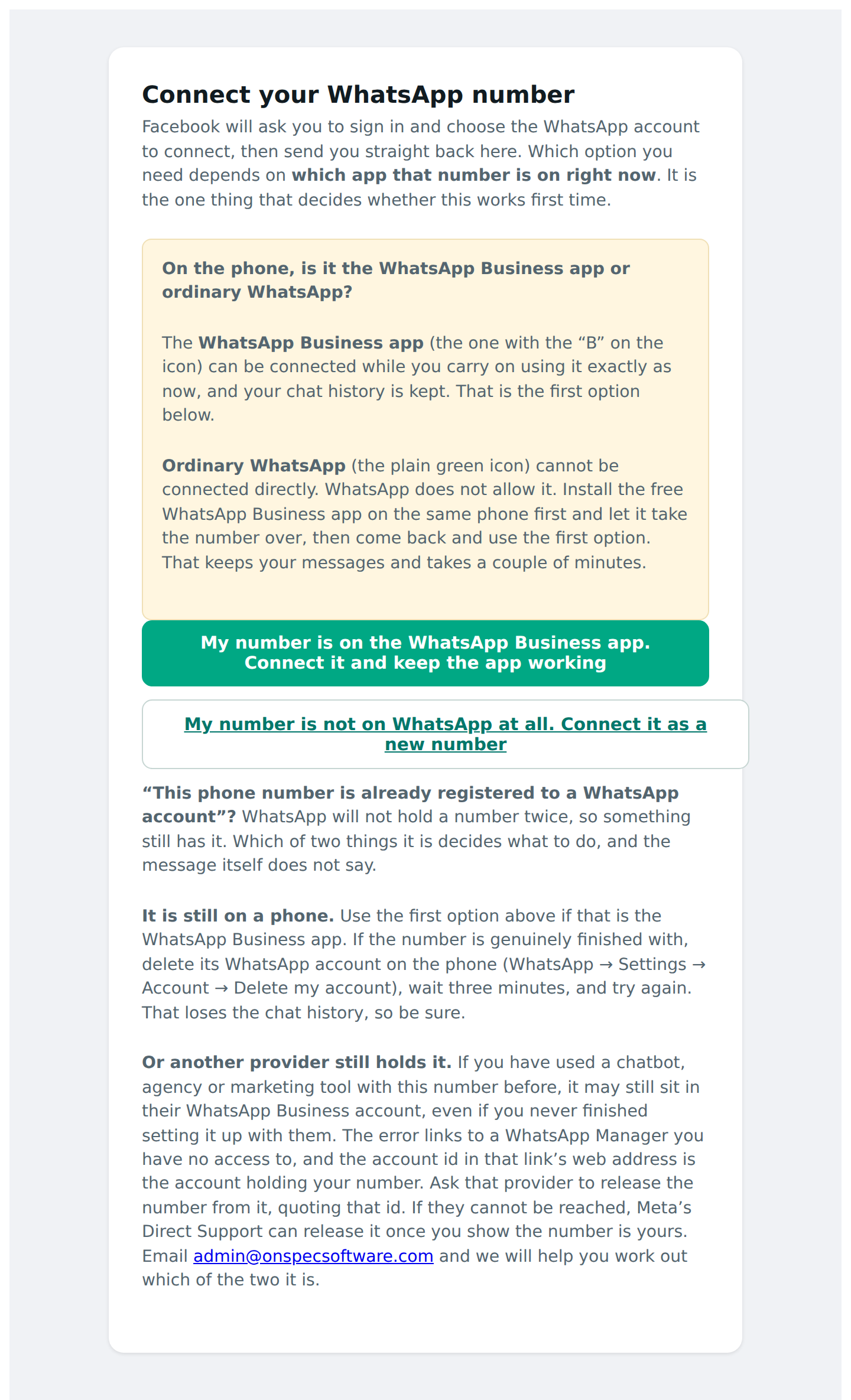
One question decides everything
Which app is that number on right now?
On the WhatsApp Business app
The icon with the B on it. Press the first button: Keep my WhatsApp Business app. You carry on using the app exactly as you do now, and up to six months of your chat history comes with you. This is the option most trade businesses want, and the one that surprises people. You do not have to give up the app on your phone to put WhatsApp in ServiceM8.
On ordinary WhatsApp
The plain green icon. This cannot be connected directly, because WhatsApp does not allow it. Install the free WhatsApp Business app on the same phone first and let it take the number over. It keeps your messages and takes a couple of minutes. Then come back and use the first button.
Not on WhatsApp at all
A new SIM, a spare number, or a landline. Press the second button: Connect a new number. WhatsApp will verify it by text or a voice call. A landline is fine, which surprises people: WhatsApp reads the code out over a phone call, so a published office number works. The number needs to take one text or one call, once. After that it never needs a handset again.
If the number has ever had WhatsApp on it, delete that account first (WhatsApp, then Settings, Account, Delete my account) and wait a few minutes, or you will hit the already-registered error.
What you give up on a new number, and what you get
Worth knowing before you choose this, because it is hard to undo later.
You give up three things. The WhatsApp app on that number, because it lives entirely in ServiceM8 and nobody can pick up a handset and reply from it. Any chat history, since the number is new. And the way round the 24-hour rule: on the phone-app route you can sidestep the rule by replying from the handset, and that costs nothing. Here there is no sidestep.
What you get is a clean separation. Work messages stay work messages, your personal WhatsApp stays yours, and every engineer answers from their own ServiceM8 app with their name on the reply. For a business with staff rather than one person and a mobile, that is often worth more than the flexibility. Cloud API or coexistence: the full comparison.
Where the “keep my app” option is on Facebook’s screens
The first button takes you to Facebook’s signup with the right option already requested. If you ever go through Facebook’s flow another way, this is the part worth reading twice, because it is easy to walk straight past.
You reach a screen headed Select the business assets to share. Open the WhatsApp Business account dropdown. Alongside “Create a WhatsApp Business account” there is an entry called Connect a WhatsApp Business app. That is the one that keeps your phone app working. It looks like a list of accounts rather than a choice about how to connect, which is why people miss it. Pick “Create a WhatsApp Business account” instead and you will be asked to register a brand new number, which is not what you want if you already have one your customers use.
Choosing it gives you a QR code. Scan it from the WhatsApp Business app on your phone, the same way you would link WhatsApp Web, and you will be offered the chance to bring your existing chats across.
The last step happens on your phone
After the QR code, WhatsApp Business on your phone receives a message from Facebook Business. Open it, tap Connect to the Business Platform, and confirm. Until you do, the number is connected to us but registered nowhere, and it receives nothing.
This is the step people miss, because the browser says “WhatsApp connected” and it is easy to stop there. If you do, WhatsApp Settings shows a banner headed “Messages can’t reach this number yet” with a Check again button. Finish the step on the phone, press Check again, and the banner goes.
Connected is not the same as receiving
Two different things, and the settings screen shows both. A green note under Your WhatsApp number means we hold your account and can send on it. The absence of the “can’t reach this number yet” banner means WhatsApp is actually passing messages to us. Both have to be true before a customer’s message will arrive. If you are ever unsure, send a test from another phone.
Your chat history has a clock on it
Contacts and the last six months of chats can only be requested in the 24 hours after connecting, and only once. If you connected but the history has not appeared after a day, the request was missed. The way to get the offer back is to disconnect the number from the Setup tab and connect it again.
Outside the UK
The dialling code of the connected number sets how customers’ numbers are read. On a South African account “082 412 3456” is read as +27, on a UK one “07700 900123” as +44. It is taken from the number itself, so there is nothing to set, but it is why the number you connect should be the one your customers actually message.
The messages you might see on the connection screen
- “Signup wasn’t finished, so nothing has changed.” You closed Facebook’s window before the end. Start again from the button.
- “That took long enough for the link to expire.” Reopen WhatsApp Settings in ServiceM8 and press the connect button again for a fresh link.
- “Something went wrong finishing the connection.” Email us with the time it happened. When this has happened before it was our fault, not the customer’s, and it was fixed the same day.
- “This phone number is already registered to a WhatsApp account.” A specific problem with a specific fix. That error and what causes it.