How ServiceHQ Reviews works
A job is marked Completed in ServiceM8. A couple of hours later the customer gets a message with a link straight to your Google review box, and the office can see who has been asked and who has gone to Google. Here is what that looks like, screen by screen.
Your customer
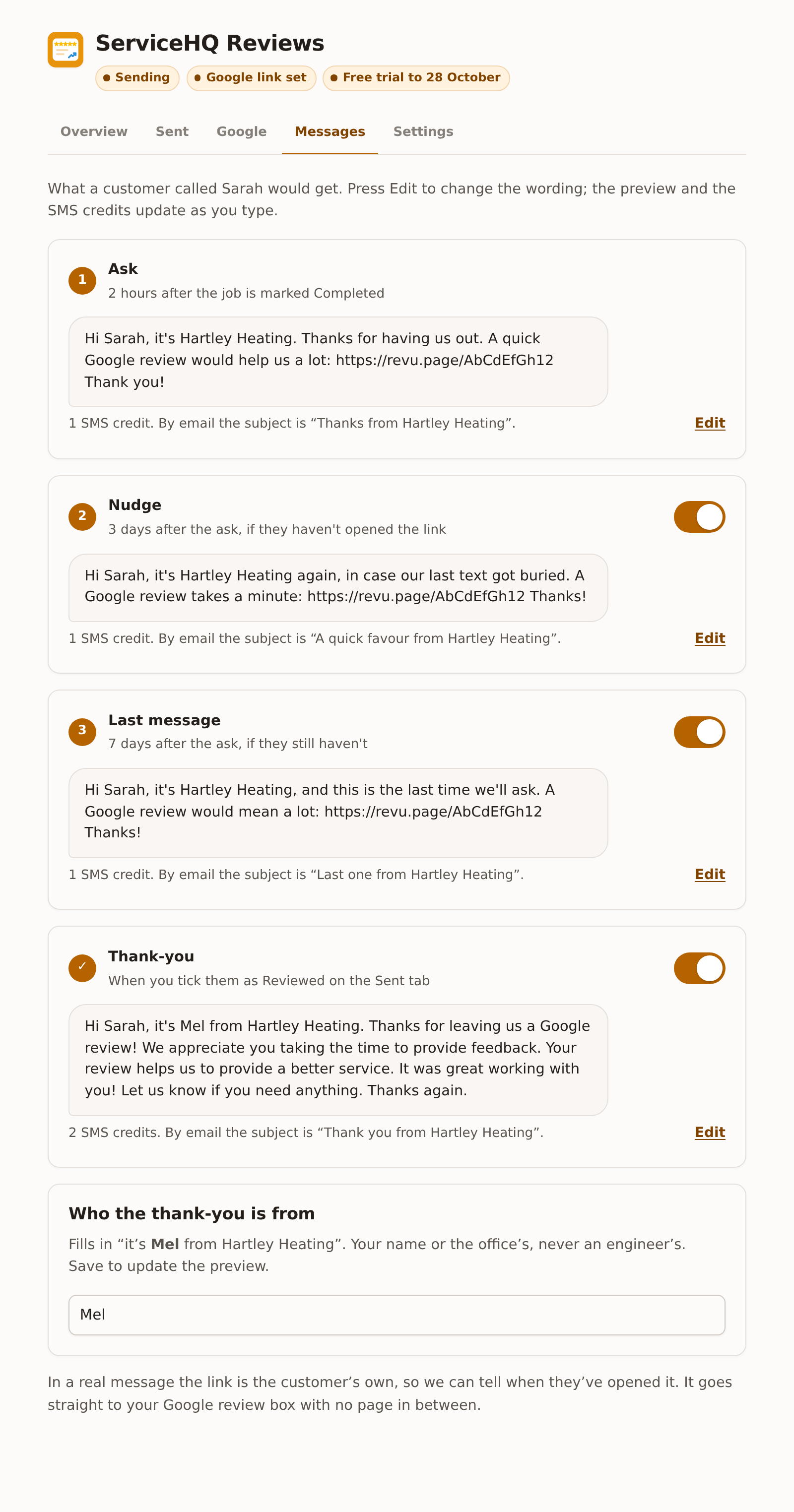
What the customer gets
A short text from your business, two hours after the job, with a link that opens Google's review box.
The text comes from your own ServiceM8 account, so it shows in the job diary like any other. It uses their first name and your business name, and the link goes straight to the box where they write the review, with no page of ours in between.
If they haven't opened it, a nudge goes on day 3 and a last message on day 7, saying it's the last time you'll ask. Once they open the link, or reply to the message, nothing more goes. Someone who has been asked isn't asked again on their next job.
No mobile on file? It goes by email instead, with a button to Google and a way to stop further requests. If you use ServiceHQ Chat, it can go from your WhatsApp number, falling back to a text if WhatsApp can't deliver it.
The office
What you see in ServiceM8
Reviews is in the ServiceM8 menu. One screen says whether it's on, what has gone out, and what happened.
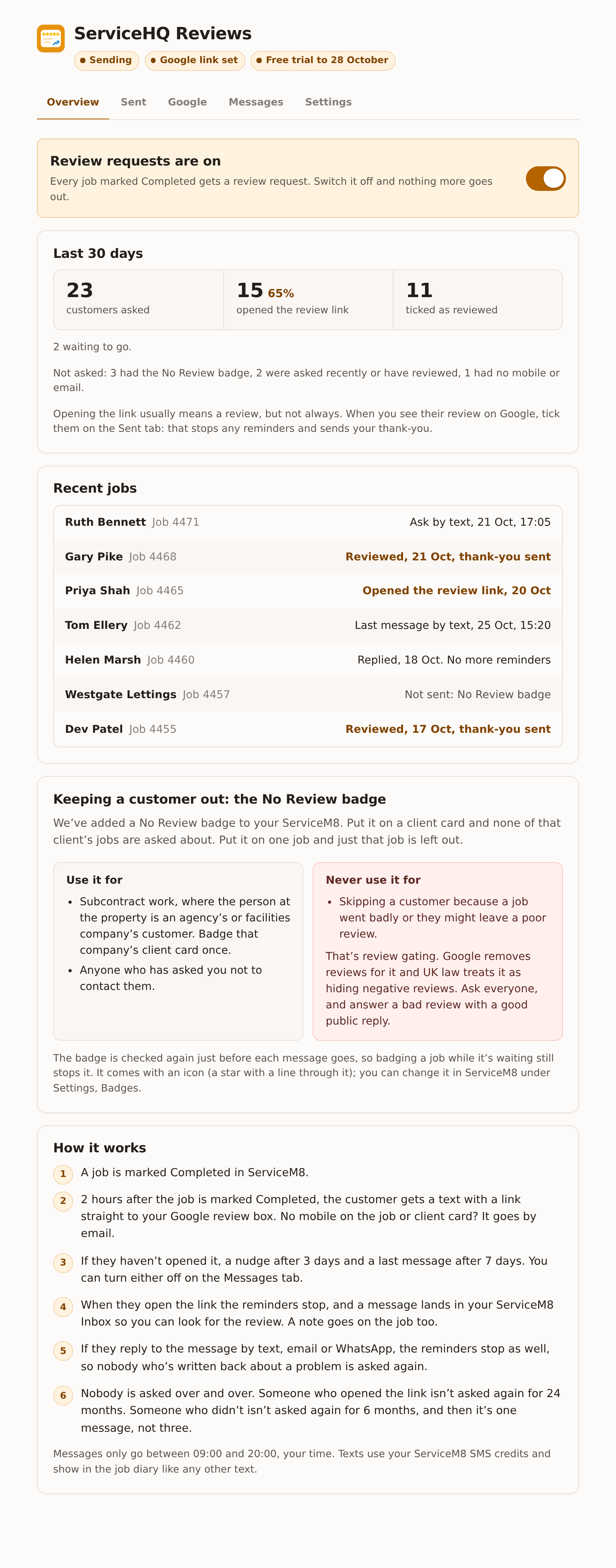
When a customer opens the link, a message lands in your ServiceM8 Inbox so someone can look on Google for the review and reply to it. On Mondays a short summary arrives there too: how many were asked, how many opened the link, and who to check.
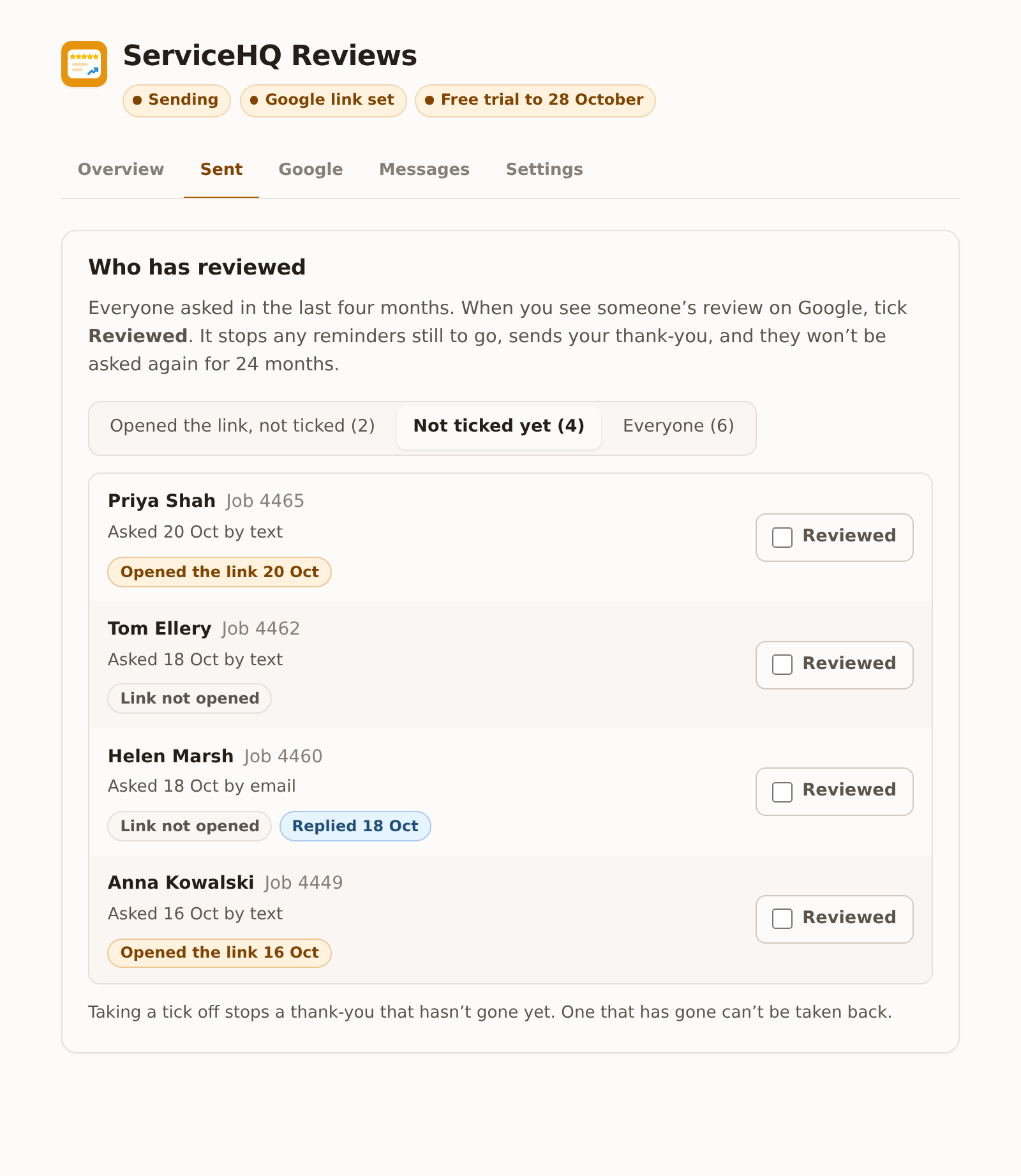
Opening the link usually means a review, but not always. When you see someone's review, tick them on the Sent tab. That stops any reminders still to go and sends your thank-you.
On the job
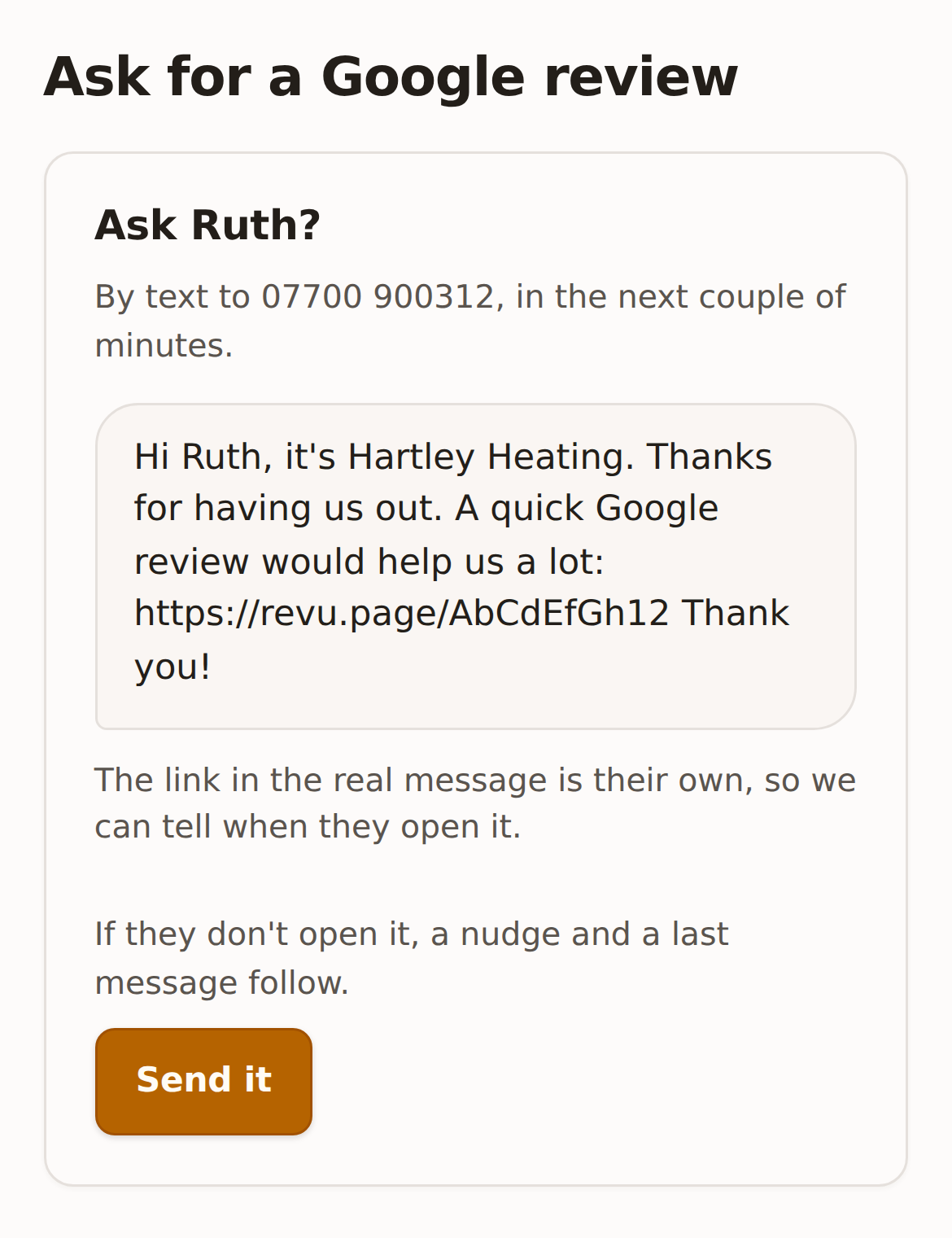
Ask from the job card
For an older job, or a customer you want to ask now rather than wait.
Every job has an Ask for a Google review button, on the web and in the ServiceM8 app. It shows who the message goes to, how, and exactly what it says, before anything is sent. Press Send it and it goes in the next couple of minutes, with the usual nudge and last message if they don't open it.
It won't ask someone who has already reviewed you, opened your link before, asked not to be contacted, or has the No Review badge.
Your reviews, matched and answered
Connect your Google Business Profile and the reviews come to you.
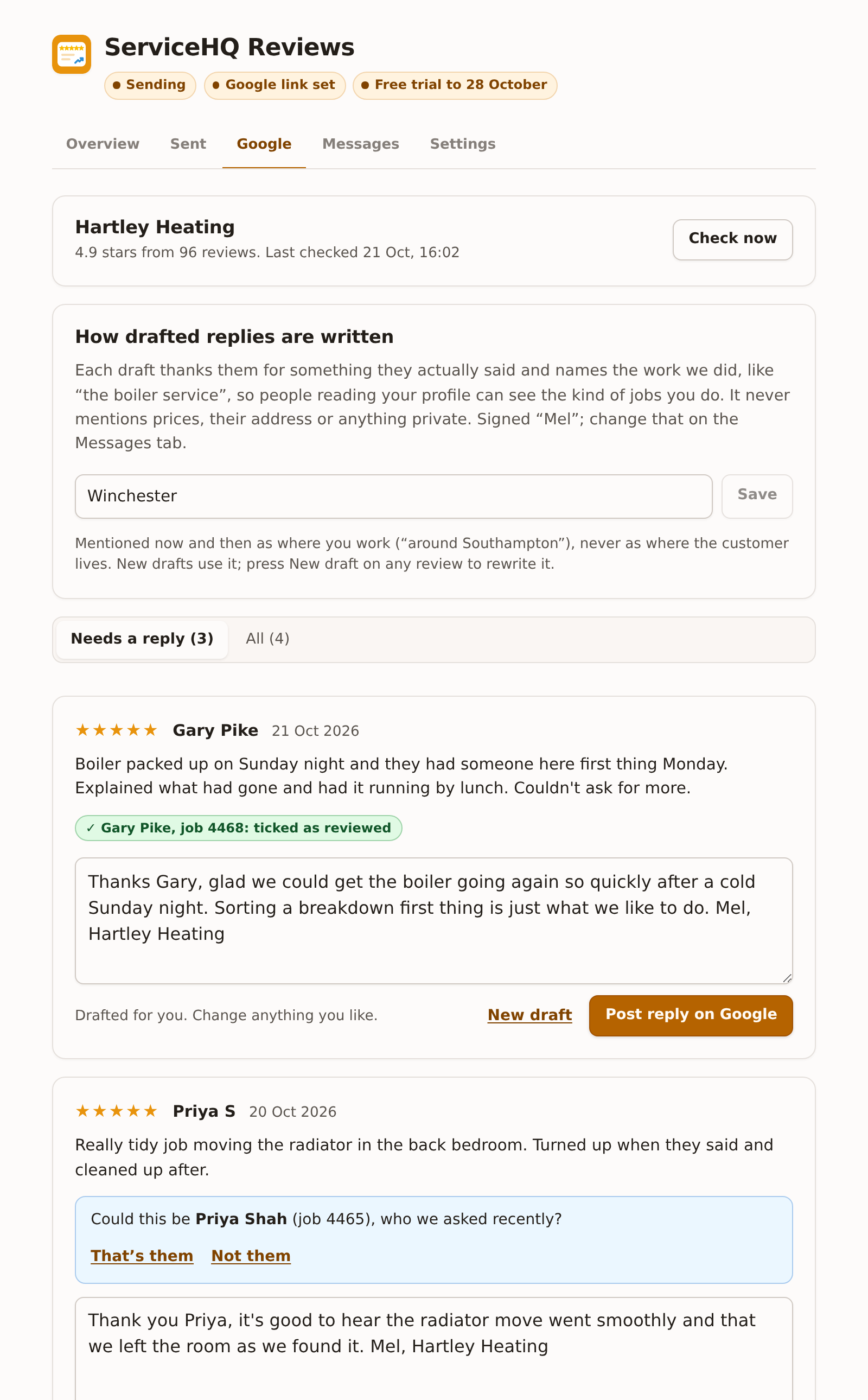
New reviews are checked every half hour. When the name on a review matches a customer you asked, they're ticked as reviewed for you and thanked. When it only might be them, it asks you to confirm.
Every review gets a reply drafted in your voice. It thanks them for something they actually said and names the work you did, so people reading your profile see the kind of jobs you do. It never mentions prices, their address, or anything private.
A review of three stars or fewer comes to your Inbox with a note to ring them before anyone replies in public. Nothing is ever posted on Google without someone pressing Post.
Beyond the job
Your website and your paperwork
The same reviews, working for you in two more places.
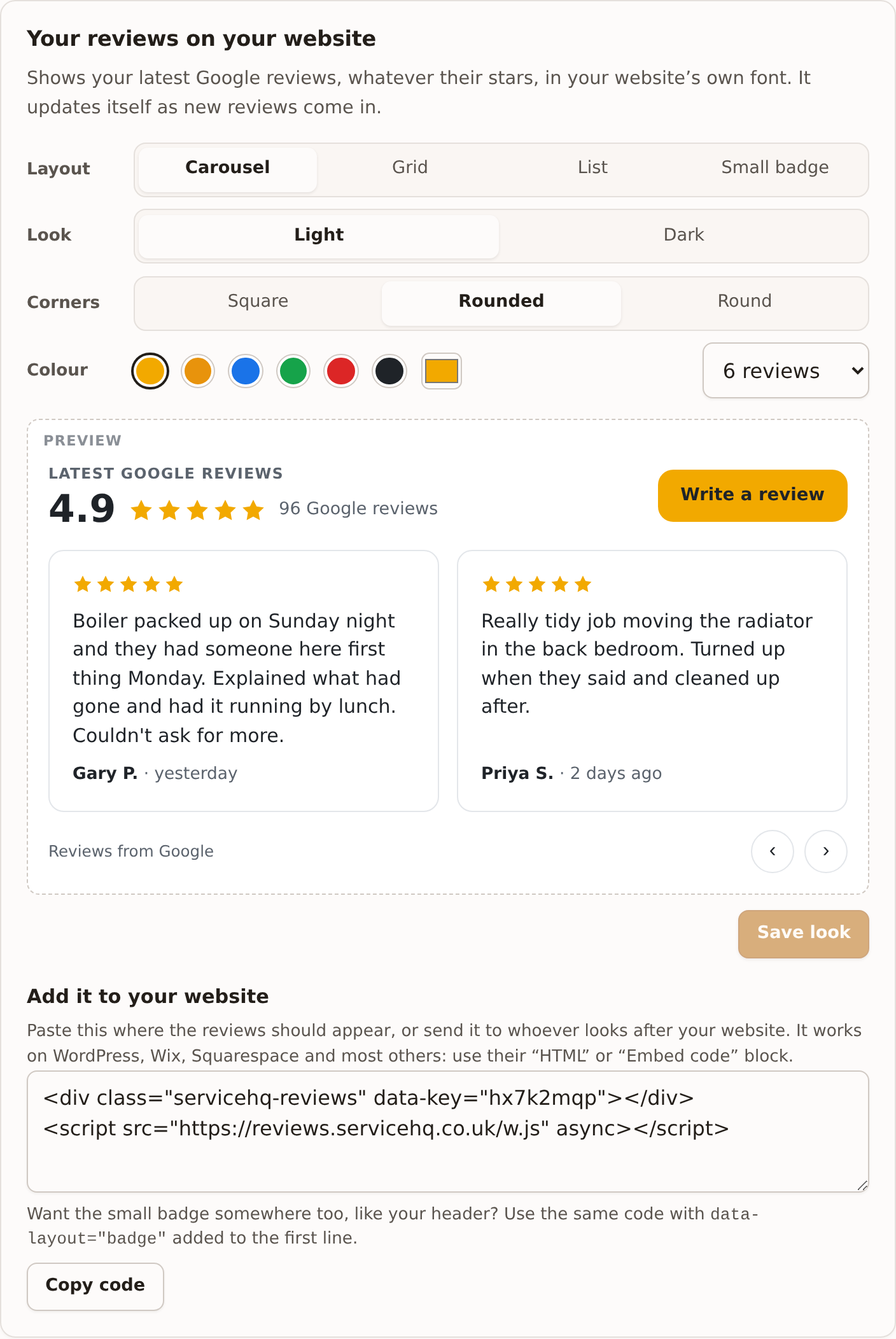
The website widget shows your latest Google reviews in your own site's font, every star rating included, and updates itself. It works on WordPress, Wix, Squarespace and most other website builders.
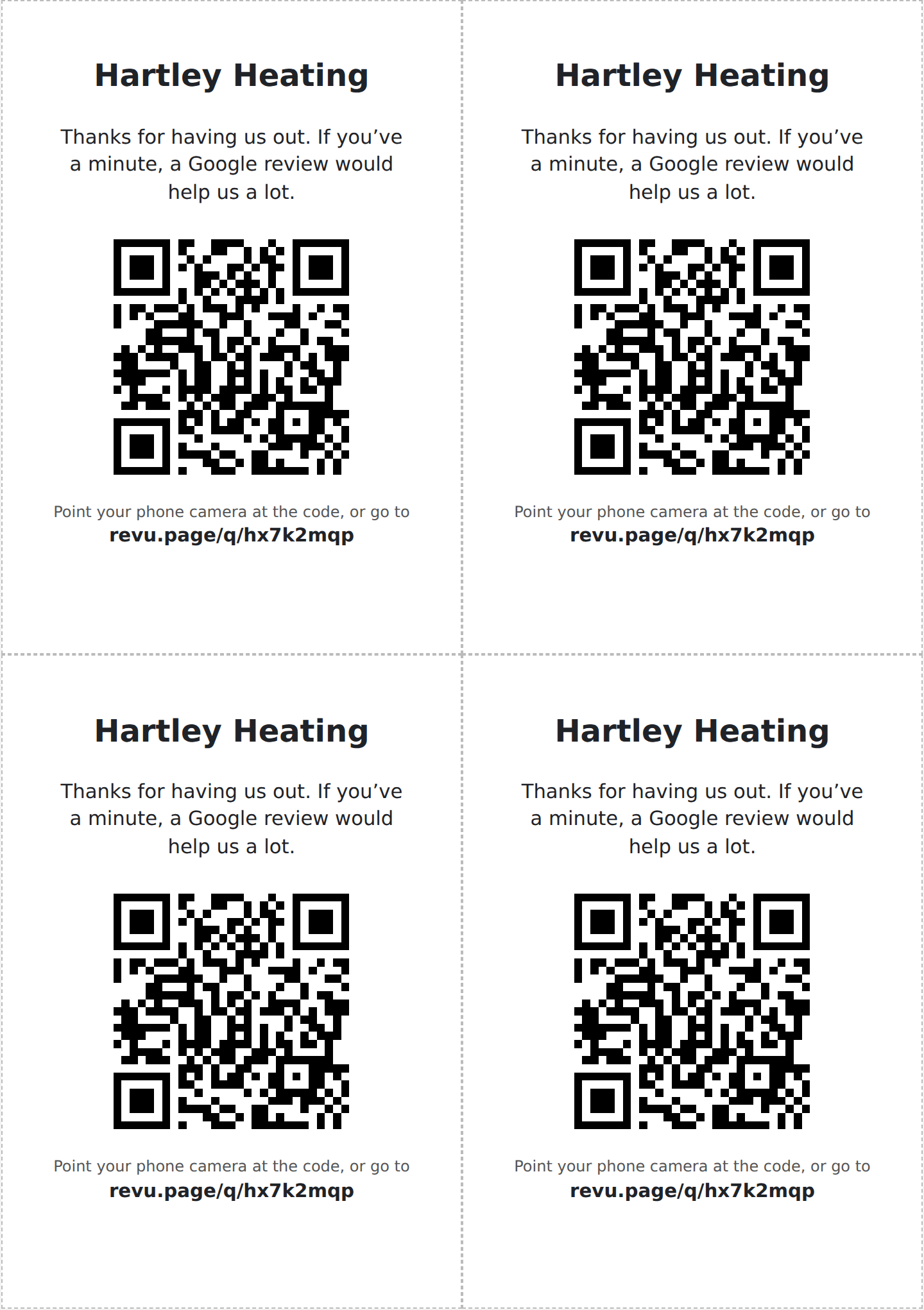
Your review QR code goes straight to your Google review box. Print it on cards to leave on a job, put it on the van, or add it to your invoices.
The rules
Asking the right way
Google and UK law are both clear about this, and the add-on is built to follow them.
Everyone is asked the same way
No "rate us first" step and no private feedback form. Filtering out unhappy customers is review gating: Google removes reviews for it, and the Digital Markets, Competition and Consumers Act treats it as hiding negative reviews.
The No Review badge, used properly
For customers who aren't yours to ask, like subcontract work for an agency, and for anyone who asked not to be contacted. Never for a job that went badly.
Nobody pestered
Three messages at most, only between 09:00 and 20:00 your time, and none once they open the link or reply. Nobody is sent the same message twice.
No names, no rewards
Messages never name your engineers and never offer anything in return. The thank-you comes from you or the office.
Getting set up
About ten minutes
Install, start the trial, connect Google, switch it on.
- Press Install now. It opens ServiceM8, adds Reviews to your account and asks you to approve the access it needs. A No Review badge is added to your ServiceM8 at the same time.
- Open Reviews from the ServiceM8 menu and start the 7-day free trial.
- Connect your Google Business Profile on the Google tab. That fills in your review link, and brings your reviews and drafted replies with it. Or paste your review link on the Settings tab instead.
- Tick the box and switch it on. Jobs marked Completed from then on are asked about. Nothing goes to past jobs.
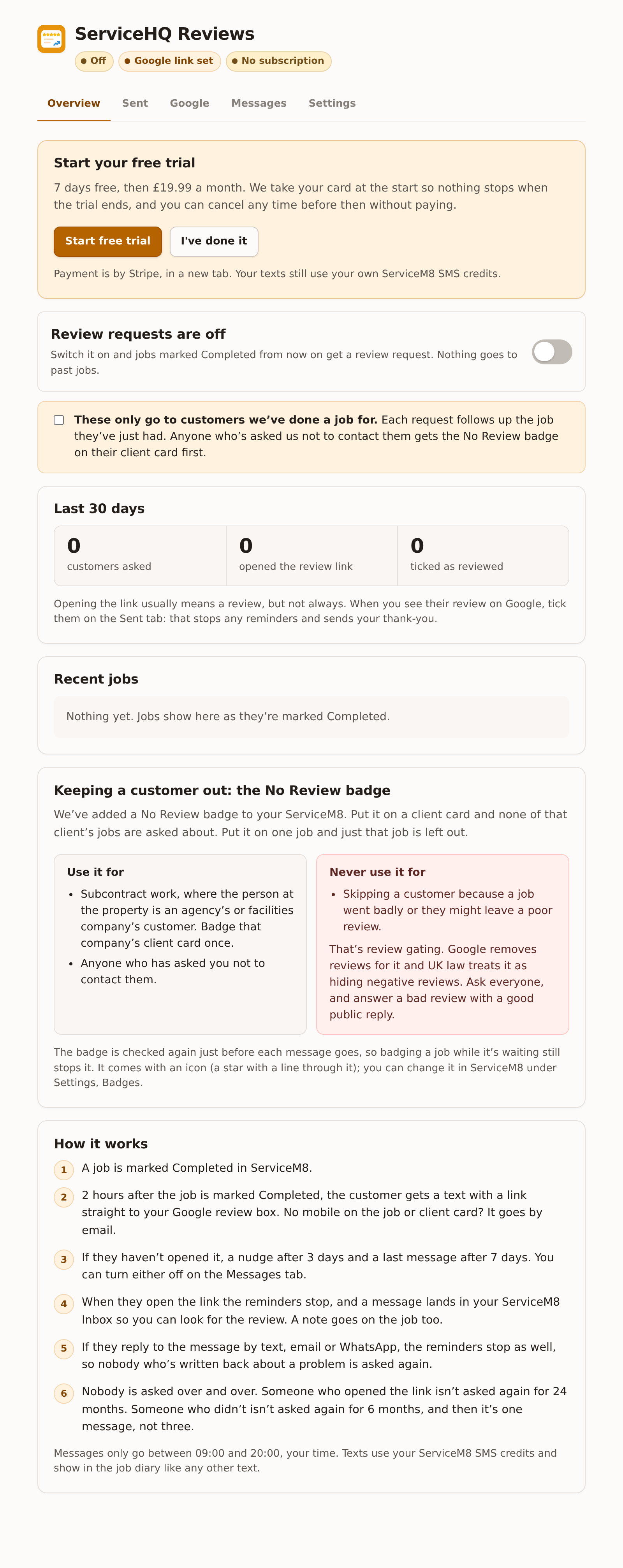
Needs ServiceM8 and a Google Business Profile. Texts use your own ServiceM8 SMS credits. Thehelp pages cover every setting, the No Review badge, and what to do when something isn't working.
Pricing
One price, seven days free
ServiceHQ Reviews
£19.99 a month
Review requests on every completed job, reminders, the Google tab with drafted replies, the website widget, and your QR code and print cards. However many of your team use it.
Seven days free, with your card taken at the start so nothing stops when the trial ends. Cancel any time before then and you pay nothing.
Texts go from your ServiceM8 account and use your own SMS credits. With a short business name the ask, nudge and last message are one credit each, and the Messages tab shows the count for yours. If you send by WhatsApp through ServiceHQ Chat, Meta charges for those messages on its own published rates.
Ready to try it on your own account?
Install takes a minute and the trial is seven days. If you would rather we set it up with you on a call, get in touch and we will.