How ServiceHQ Chat works
A customer messages your WhatsApp number. It lands on the job in ServiceM8, your team replies from there, and if you want, an assistant answers new enquiries and books them in. Here is what that looks like, screen by screen.
The tour
Two minutes, start to finish
Filmed from the product itself. The customer in it is invented; the business is ours.
Your customer
What the customer sees
Nothing new. They message the number they already have for you, in the WhatsApp they already use.
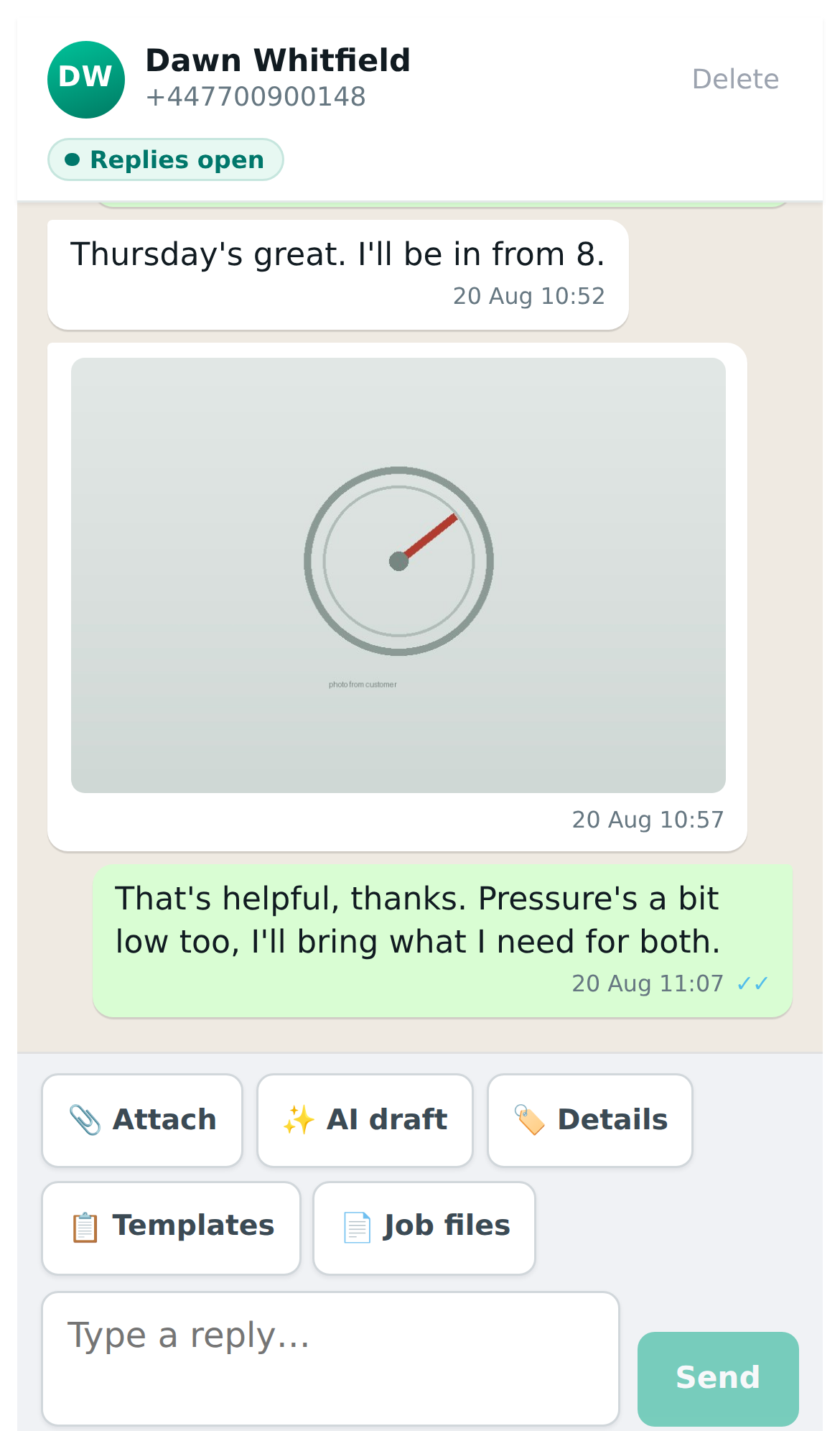
Your customers don’t install anything or learn anything. They send a WhatsApp to your business number the way they do today: a question, a photo of the leak, a “can you come Thursday?”. Replies come back from the same number, so their side of it looks like any other WhatsApp chat.
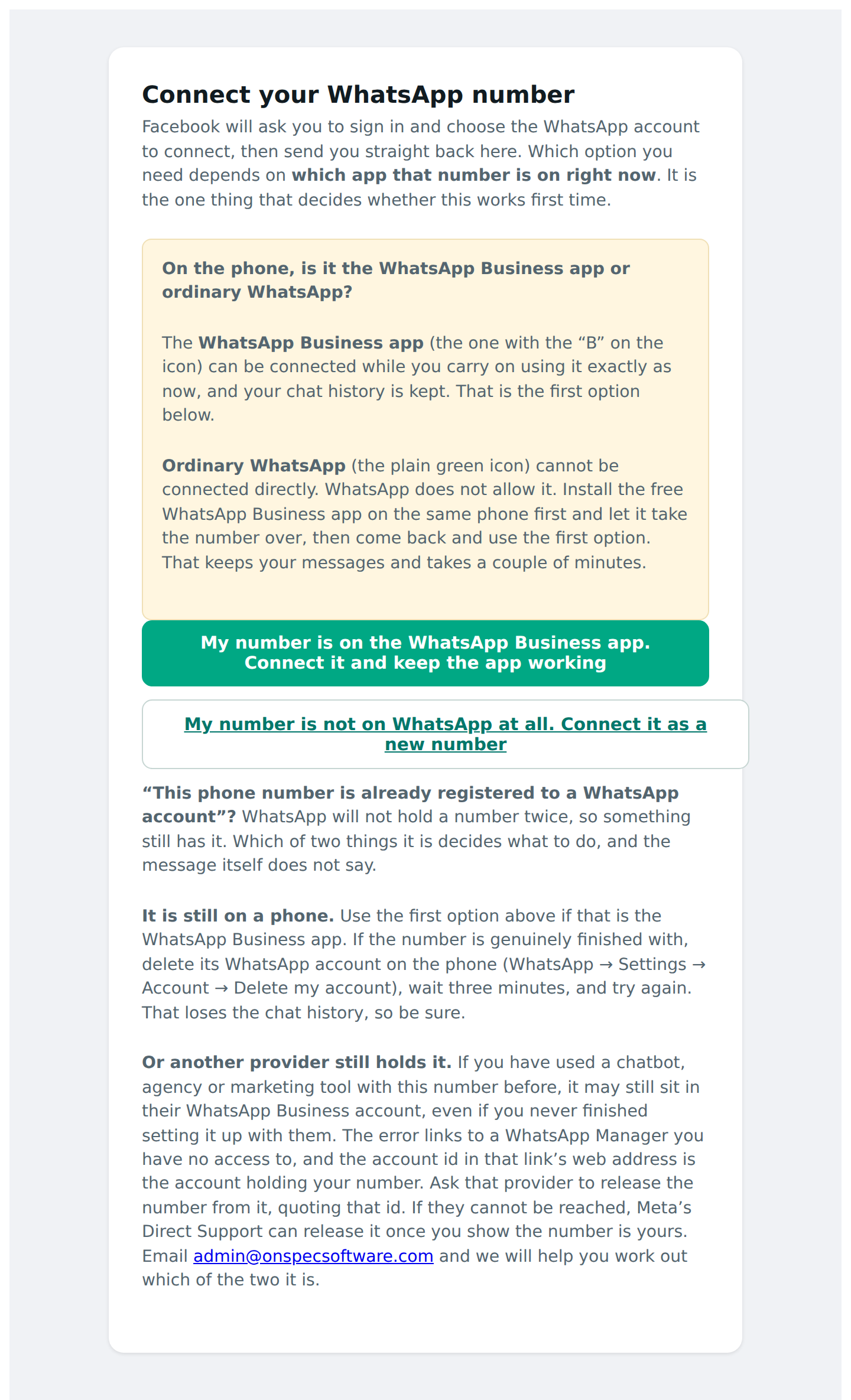
If you keep your number on the WhatsApp Business app, that keeps working too. The conversation is simply also in ServiceM8, on the job, for whoever picks it up.
Your team
What your team sees in ServiceM8
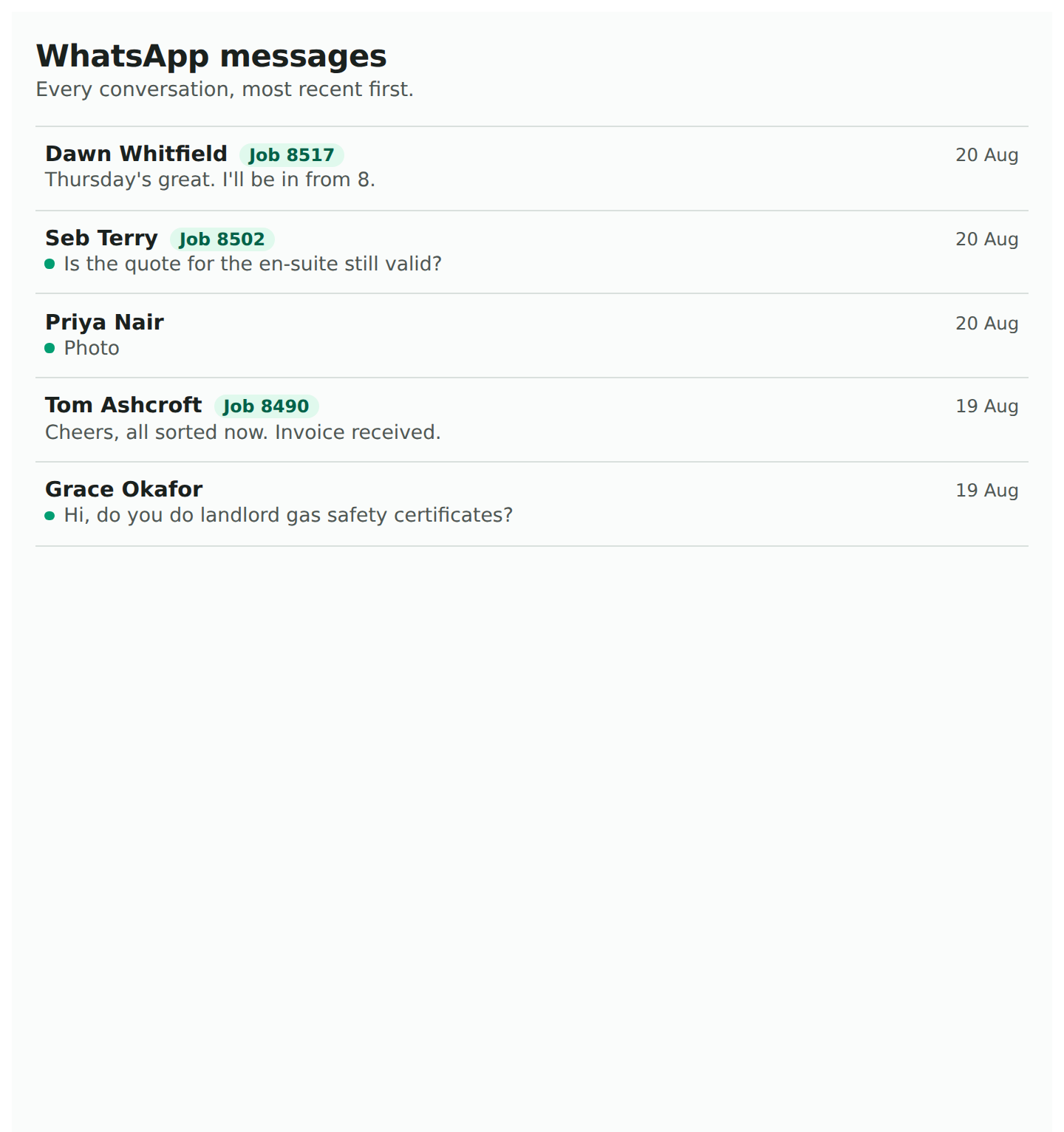
Every conversation lives on the job it belongs to, and there is one list of all of them.
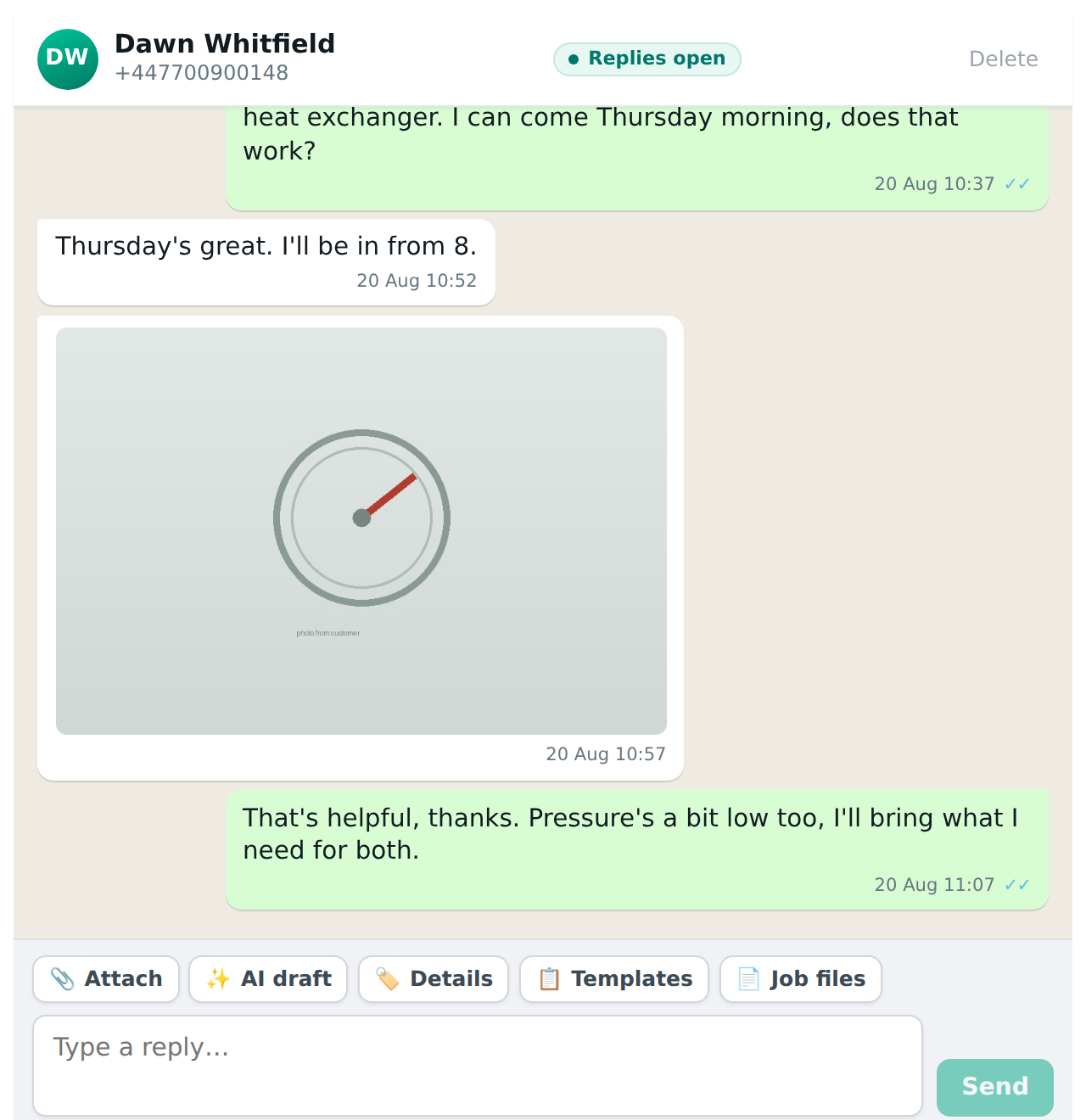
Open a job in ServiceM8 and press the WhatsApp button, and the whole thread is there: what they said, what you said, the photos they sent. Reply from the box at the bottom and it goes out from the business number. Everything is saved to the job diary as well, so somebody covering the job on Friday can read what was agreed on Monday.
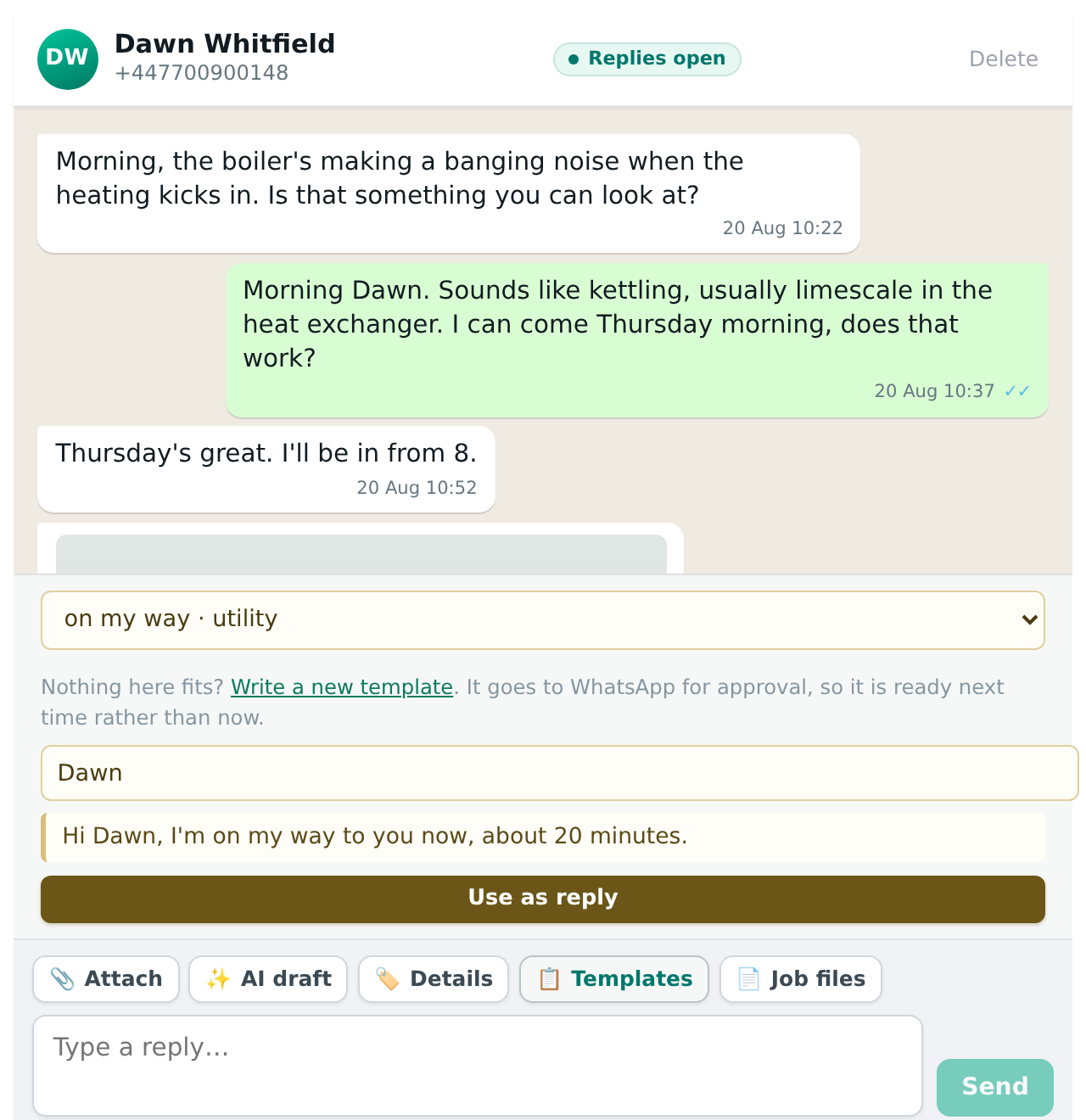
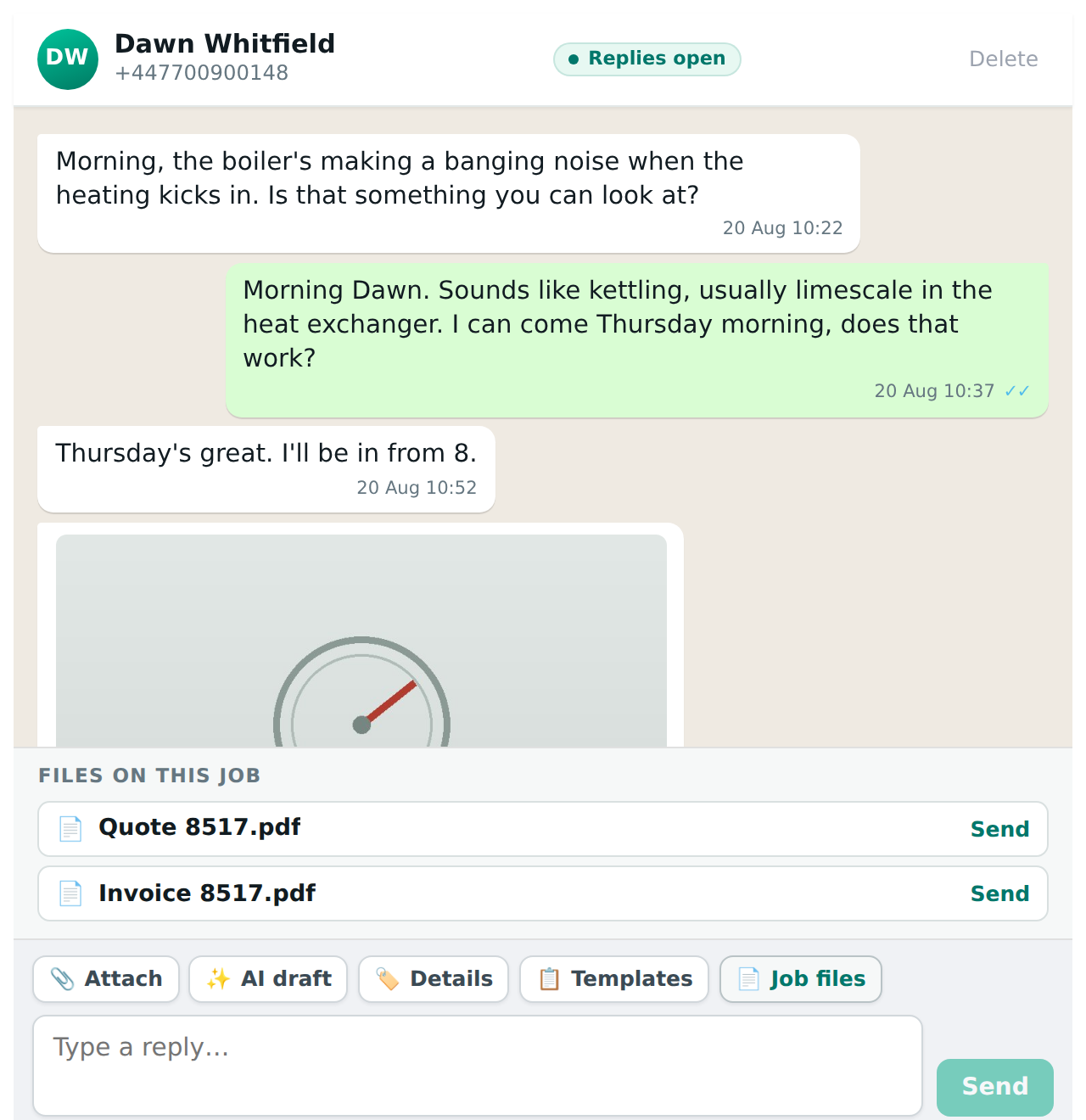
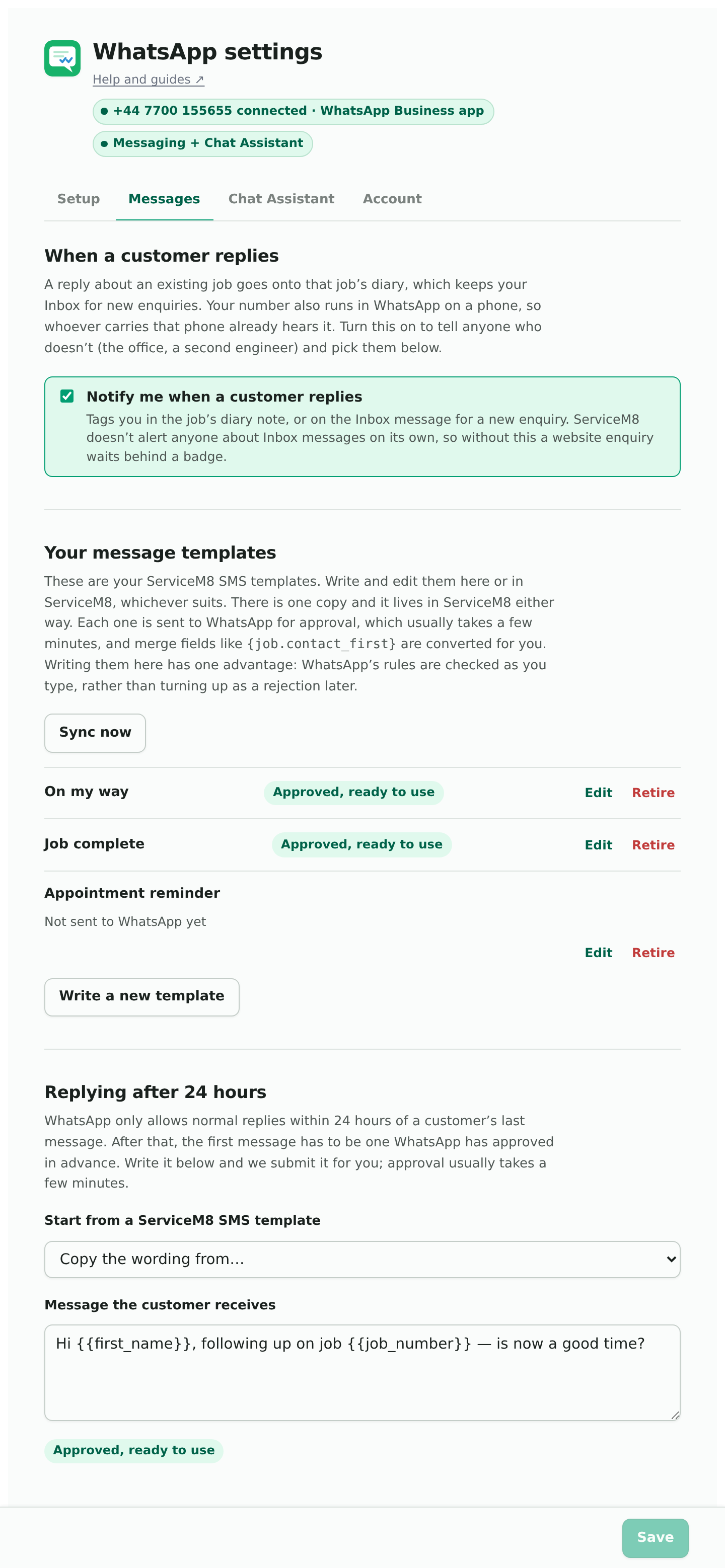
The templates you already have in ServiceM8 for SMS are mirrored to WhatsApp, so “on my way” and “job done” are one tap with the customer’s name and job number filled in. They matter for another reason: WhatsApp only lets a business send free-form messages within 24 hours of the customer’s last message. Outside that window, a template is how you re-open the conversation, and the add-on tells you which situation you are in.
New enquiries
A message from someone new
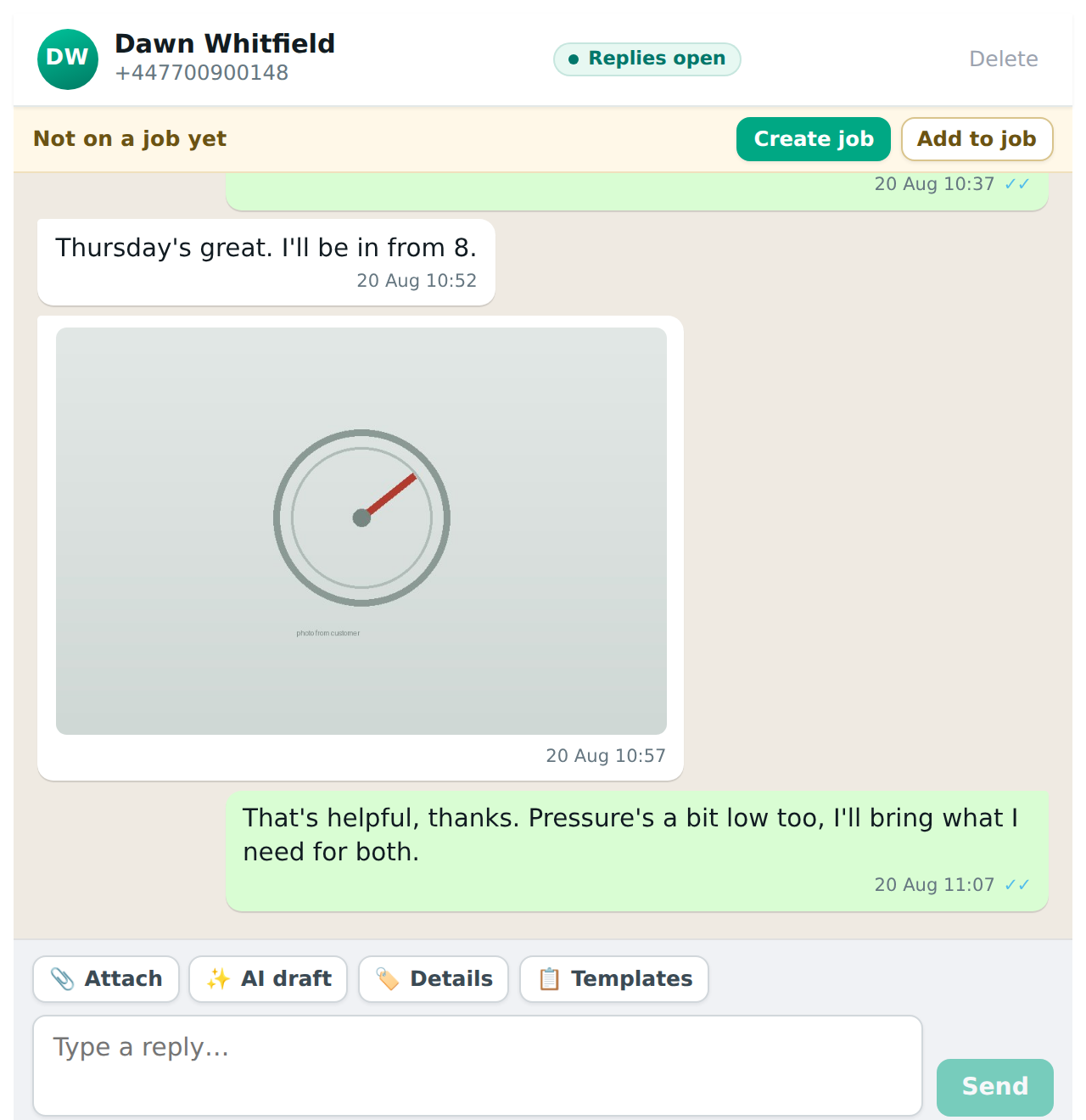
It lands in your ServiceM8 Inbox, the same place a website enquiry does.
When the number isn’t on any job or client, the message goes into your ServiceM8 Inbox with the contact details already filled in, so it can become a job or a quote in one step. From the conversation itself you can press Create job, orAdd to job if it belongs with one that already exists, without going back to the Inbox.
If you want to be told, the add-on tags a member of staff on the Inbox message, because ServiceM8 doesn’t alert anyone about Inbox items on its own.
The Chat Assistant
Enquiries answered and booked in, when you can’t
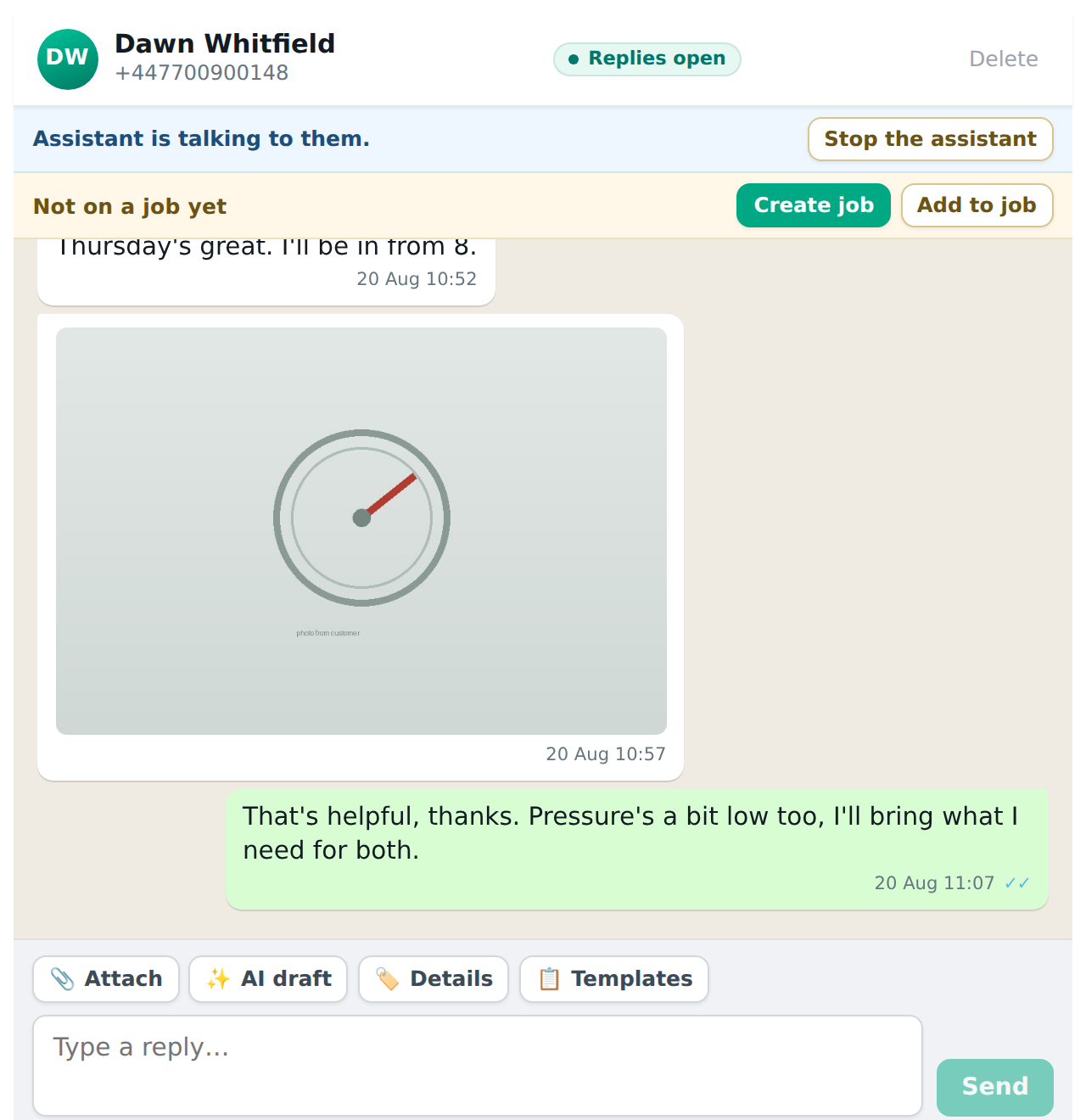
Optional. Off until you switch it on, and it steps back the moment a person types.
With the assistant on, a new enquiry gets a reply straight away. It says it is your assistant, asks what the customer needs, and works out what to do from the services you have given it. For something it can book, it offers days and then a morning or afternoon, from your real diary in ServiceM8, with travel time allowed for. It takes the name and address, confirms, and puts the job on your dispatch board with the details written on it. For something that needs a quote, it asks the questions you told it to ask, collects photos, and hands the lot to the office. For an emergency out of hours, it takes the details and promises a call back rather than a booking.
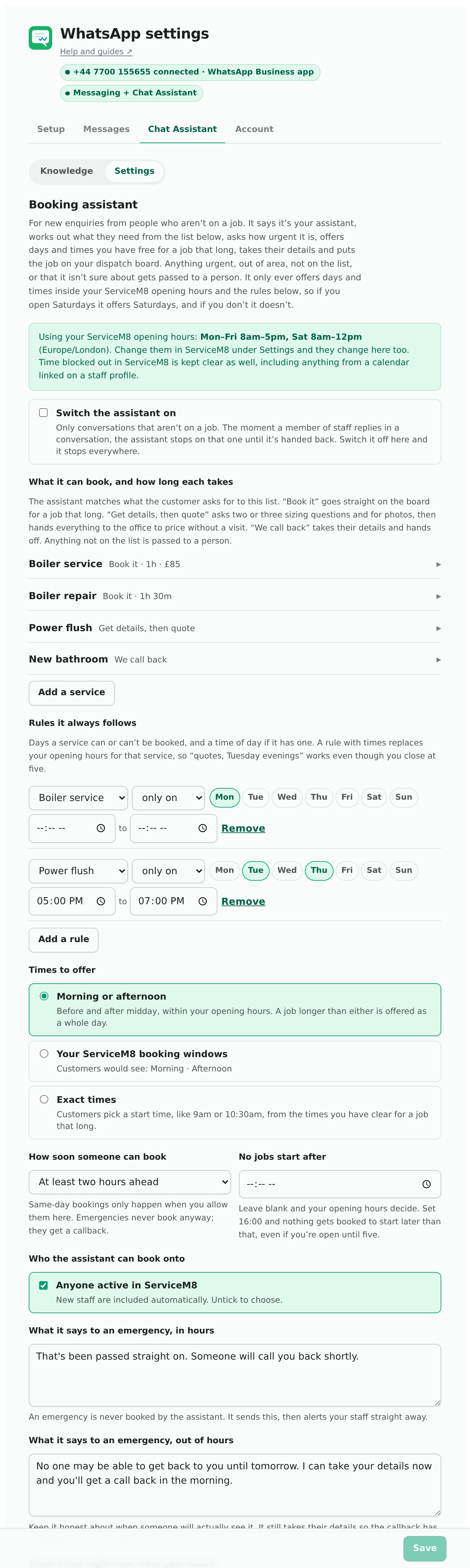
You set it up in plain words: which services it can book and how long each takes, the price to quote if you want it quoted, who can do what, and rules such as “boiler services on Mondays only” or “quotes in the evening”. Your opening hours, your business name and your staff come from ServiceM8, so you never type them twice. Time blocked out in a staff member’s calendar is never offered.
It never books outside your opening hours, never invents a price, and never promises what it can’t do. Every conversation it has is visible to you, and typing in it pauses the assistant on that conversation.
In your business
How it fits the way you work
It changes where the conversation lives, not how you run jobs.
The office
Sees every conversation in one list and is tagged on anything new. Turns enquiries into jobs from the conversation. Takes over from the assistant with one message.
Engineers
Open the job on the app, see what was agreed and the photos, and reply from the business number rather than their own. On the Business app route they keep replying from the phone too.
Evenings and weekends
The assistant answers within seconds, books what you allow, and takes details for the rest. You wake up to jobs on the board and a note on each saying what was said.
What stays the same
Quotes, invoices and payments stay in ServiceM8. Your number stays yours. Nothing is sent to a customer that a person or your own rules didn’t decide.
Getting set up
About fifteen minutes
Three connections, then settings you can leave at their defaults.
- Press Install now. It opens ServiceM8, adds the add-on to your account, and asks you to approve the access it needs. Each permission is explained on the help pages. It will also be in the ServiceM8 Add-on Store once listed.
- Connect your WhatsApp number. The add-on asks one question first: is the number on the WhatsApp Business app? If it is, say so and the app on your phone keeps working, with up to six months of chats brought across. If the number is not on WhatsApp at all, it is connected as a new number. WhatsApp’s own signup does the rest.
- Check Settings. Your business name and hours are already there from ServiceM8. Choose who gets tagged when a customer replies, and see your SMS templates mirrored across.
- Switch on the assistant, if you want it. Add the services it can book, set their lengths, and read the preview of what a customer would be offered before you turn it on.
Needs a ServiceM8 plan with the Inbox, and a WhatsApp Business number. Meta charges for WhatsApp Business Platform messaging separately, on your own Meta account, at its published rates. The help pages cover the 24-hour rule, templates, permissions and billing in detail.
Pricing
Two plans, one trial
ServiceHQ Chat
£29.99 a month
WhatsApp on the job. Conversations on every job, replies from the business number, templates, photos and files, the Inbox for new enquiries. Complete on its own.
ServiceHQ Chat with the Assistant
£59.98 a month
Everything in Chat, and the assistant answering new enquiries, taking details, and booking jobs onto your dispatch board.
Seven days free on either plan, with the assistant included in the trial. Card taken at the start, nothing charged until the trial ends, cancel any time. Switch plans whenever you like.
Ready to try it on your own account?
Install takes a minute and the trial is seven days on either plan. If you would rather we set it up with you on a call, on your ServiceM8 account, get in touch and we will.